
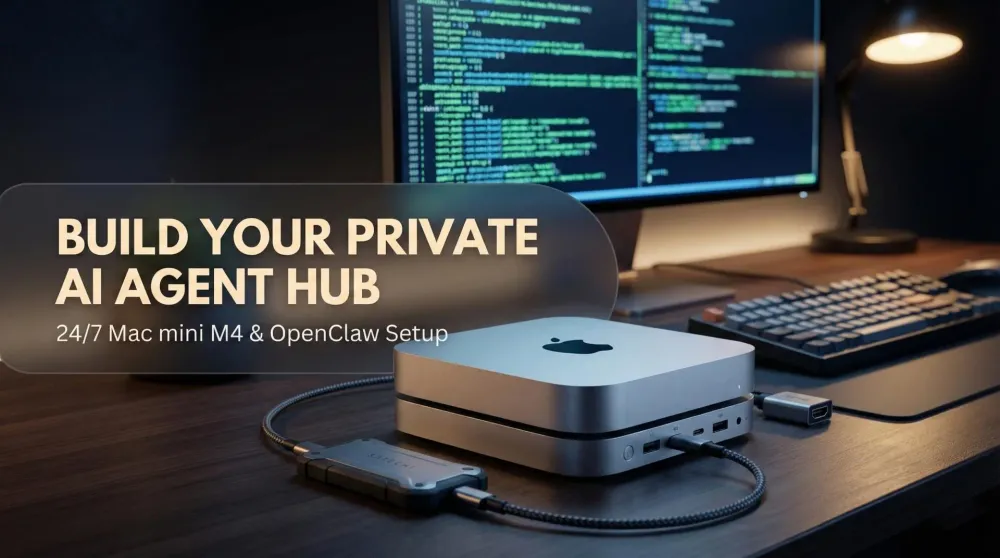
Clawdbot (OpenClaw) on Mac mini M4: How to build your 24-7 private AI agent hub
Turn your Mac mini M4 into 'The Clawdfather' – a proactive, private AI agent hub using Clawdbot (OpenClaw) and Ollama.
This post contains affiliate links. We may earn a commission if you make a purchase, at no extra cost to you. As an Amazon Associate, Dadnology earns from qualifying purchases.
1. The “why”: From passive chatbot to proactive agent
🦞 This guide is part of our OpenClaw Master Hub – every guide to running your own AI agent at home, from first install to family automations.
We are at a strategic turning point in personal AI. The novelty of reactive chatbots that simply answer our questions is giving way to the profound utility of proactive, autonomous agents that can execute real-world tasks. This is the shift from a conversational partner to a digital employee—one that works for you, on your hardware, under your control.
The distinction between a conventional chatbot and a proactive AI agent like Clawdbot (OpenClaw) is fundamental. One is a tool for information retrieval; the other is a tool for action.
| Feature | Conventional Chatbot | Proactive Clawdbot Agent |
|---|---|---|
| Role | Reactive Tool | Proactive Employee |
| Action | Passively waits for questions | Actively performs tasks |
| Scope | Limited to conversation window | System-Wide Access (Shell, Files, Web) |
| Workflow | Generates text | Manages complex workflows |
To serve as the foundation for this powerful agent, we need a hardware platform that is efficient, quiet, and capable. This is where the Mac mini M4 comes in. We call it ‘The Clawdfather’—the gold standard for a personal AI hub. Its exceptional power efficiency makes it perfect for 24/7 operation, its quiet performance won’t disturb your home or office, and its unified memory architecture is a game-changer for running local AI models. With this foundation, we can build something truly powerful, which brings us to the most important part of the project: doing it safely.
2. Safety first: Building your AI sandbox
Let’s be unequivocally clear: the immense power of an AI agent with deep system access carries proportional risks. Making security the absolute top priority of this project is not just recommended; it is mandatory.
Running an agent with high-level system permissions on your primary personal computer is an unacceptable risk. Security experts are in consensus on this point. Giving an AI agent with shell access to a machine containing your personal data, photos, and credentials opens the door to catastrophic data loss, unauthorized access, and credential exposure. As security researchers have demonstrated, sophisticated prompt injection attacks—where malicious instructions hidden in an email or even a PDF could compromise your system—are a realistic threat. You cannot mitigate these risks simply by “being careful.”
This is why we must build a ‘DMZ’ (Demilitarized Zone) for our AI agent. In this context, the dedicated Mac mini M4 acts as the perfect physical sandbox—a secure, isolated environment completely separate from your daily-use computer. This isolation is your primary line of defense, ensuring that the agent’s operations, and any potential mistakes or attacks, are contained within an environment that does not hold your critical personal data. This isn’t paranoia; it’s the responsible way to harness cutting-edge technology.
3. The hardware: Your Clawdfather’s command center
Selecting the right components is crucial for building a stable, high-performance AI hub that can run around the clock. This specific hardware configuration provides the optimal balance of performance, stability, and cost for a dedicated, 24/7 AI agent. (Wondering how much RAM to order? Our Mac mini buying guide for OpenClaw compares every configuration — and our full Mac mini M4 review covers what this little box is like to live with day to day.)
We recommend adding the HDMI Dummy Plug to ensure your headless server remains accessible at all times.
Additionally, consider the Satechi Hub to expand your I/O and keep the unit elevated for better cooling, or a Samsung T7 Shield if you plan to store many large model files externally.
With these two key pieces of hardware secured, we can now move on to bringing the system to life with the necessary software.
4. The 3-step setup: Bringing your agent to life
The software installation is a straightforward, three-stage process. By following these steps precisely, you will have a functional, remotely-accessible AI agent operational in a surprisingly short amount of time. You will need a keyboard for this part—we recommend the Magic Keyboard with Touch ID to make authentication quicker.
Step 1: Install the AI engine (Ollama)
Ollama is the engine that will run our local large language models.
- Install Command Line Tools: This is a prerequisite for Homebrew, a package manager for macOS. Open the Terminal app and run:
xcode-select --install - Install Homebrew: Paste this command into your Terminal to install the package manager:
/bin/bash -c "$(curl -fsSL https://raw.githubusercontent.com/Homebrew/install/HEAD/install.sh)" - Install and Launch Ollama: Download the Ollama application from its official website. Drag the app icon into your Applications folder. The first time you launch it, you may need to approve it in System Settings → Privacy & Security.
- Download Your First Model: With Ollama running, open Terminal and pull a foundational AI model. This command downloads Llama 3.1 8B, a powerful and efficient model that is well-suited for a 16GB Mac mini:
ollama pull llama3.1
Step 2: Onboard OpenClaw
OpenClaw is the agent framework that gives our AI its capabilities. It requires Node.js (version 22 or higher) to run.
Installation
First, install OpenClaw using the official script:
curl -fsSL https://molt.bot/install.sh | bashInitial Configuration
Next, run the onboarding command. This will launch a friendly setup wizard that guides you through the entire configuration process, including connecting to an AI model provider (like the local Ollama instance we just set up) and configuring communication channels.
openclaw onboardStep 3: Build the messaging bridge
The final step is to connect OpenClaw to a messaging service you use every day, such as Telegram or Discord. The openclaw onboard wizard will guide you through this process. This bridge is the magic that transforms your Mac mini from an isolated server into a remotely accessible agent. Once configured, you can issue commands and receive responses from anywhere in the world, right from the chat app on your smartphone.
With the hardware assembled and the software stack configured, let’s look at what this powerful new assistant can do.
5. Real-world use case: Your agent in action
To truly appreciate the value of your new AI hub, imagine this scenario: you’re at the park with your family when a colleague asks for a quick summary of a long research PDF sitting on your desk at home. Instead of rushing back, you simply pull out your phone.
You open Telegram and send a message to your private agent: “Find the Q4 research PDF on my desktop and give me a three-paragraph summary.” Within seconds, a concise summary appears in your chat.
Here’s a simple breakdown of what happens behind the scenes to make this possible:
- Command Sent: Your request is sent as a simple text message from your phone via the Telegram app.
- Instruction Received: The OpenClaw gateway running 24/7 on your Mac mini receives the instruction securely.
- Local File Access: The agent accesses the local file system on the Mac mini, locates the specified PDF on the desktop, and reads its contents.
- AI Processing: The content of the PDF is processed by the Llama 3.1 model running locally via Ollama, which generates a coherent and accurate summary.
- Response Delivered: The final summary is sent back as a reply message directly to you in the Telegram chat.
This seamless fusion of remote communication, local file access, and powerful AI processing is what makes this project so transformative.
6. Going further: Skills, scheduling, and expanding your agent
The initial setup above gives you a functional OpenClaw agent. Once that baseline is running reliably, several worthwhile expansions are worth building.
Installing Skills: OpenClaw’s skills marketplace extends your agent’s capabilities beyond the defaults. A “Daily Briefing” skill can compile your calendar, weather, and news digest and deliver it via Telegram every morning before you sit down at your desk. A “GitHub Monitor” skill can ping you when a pull request needs review. A “Price Tracker” skill watches a product URL and notifies you when the price drops below a threshold. Skills install via simple OpenClaw CLI commands and activate without restarting the agent.
Scheduling Autonomous Tasks: Beyond responding to your messages, OpenClaw can be configured to run tasks on a schedule. Setting up a weekly research sweep — “every Sunday at 8pm, search for significant papers in this topic and save the abstracts to a folder” — turns your Clawdfather from a responsive assistant into a proactive research engine. Scheduled tasks run whether your phone is on or off. This is the feature that makes the “24-7 private employee” framing feel less metaphorical.
Monitoring and Maintenance: A headless server running 24-7 benefits from basic health configuration. Disable display sleep entirely in macOS Energy Saver settings, enable “Start up automatically after a power failure,” and configure Wake for network access — our Mac mini headless guide walks through each of those settings and the resolution problem that appears when you skip the dummy plug. The OpenClaw dashboard (browser-accessible on your local network) shows active sessions, memory usage, and recent task logs — enough visibility to catch problems before they compound.
Model Upgrades: Newer, more efficient Ollama models appear regularly. Upgrading is a single terminal command. A model that required careful prompt engineering on 16GB in 2025 may perform noticeably better with a 2026 release on the same hardware. Keeping the model layer current is the cheapest performance upgrade available.
6a. After the first week — What the daily workflow actually looks like
The setup guide is satisfying to complete. The first Telegram message that comes back with a real answer is the moment it clicks. Then day two arrives and you realize that running an autonomous agent is less like having a tool and more like having a new member of the household: useful, occasionally surprising, and in need of a little ongoing supervision.
The daily reality, once the novelty settles, tends to look like this. Morning: you open Telegram and check whether any scheduled tasks ran overnight. Most do; occasionally one stalls because the model timeout on a long PDF was too aggressive, and the log shows where it stopped. You adjust the timeout and move on. It takes two minutes. During the workday: you fire off opportunistic requests — “find that article I bookmarked about Ollama quantization and summarize the key points” — the kind of micro-research that used to eat 15 minutes of context-switching. Evening: a quick log skim while the kids are in the bath, partly out of habit and partly because early weeks are when you catch the small misconfigurations before they compound.
What surprises most people at this stage is how quickly the agent becomes load-bearing. Within two weeks, you’ve probably built a couple of Telegram shortcuts that you now depend on — and once the system runs reliably, the natural next step is putting it to work: our passive income guide for the isolated Mac mini covers four workflows that turn the idle hours into output. That’s also the moment to do a second security pass: confirm the workspace folder boundaries still reflect what you actually need, check that no new skill you installed during the honeymoon period quietly requested permissions you didn’t intend to grant, and make sure your API spend cap still makes sense given your actual usage. Think of it as the “one month inspection” for a new appliance — brief, boring, and the thing that prevents an expensive surprise later.
The Clawdfather earns its keep through accumulated small wins. Not the dramatic “it saved me hours” story you’d write in a blog post, but the dozen daily friction points that quietly disappear because there’s now something competent handling them in the background while you’re at the park.
Pros
- Apple Silicon unified memory makes local LLM inference far more efficient than comparable x86 hardware
- 24-7 operation costs a few euros monthly in electricity — a fraction of equivalent cloud API spend
- Total privacy: prompts, files, and data never leave your hardware
- Platform-agnostic: connects via Telegram or Discord — controllable from any smartphone, anywhere
- Ollama makes model swapping trivial — upgrade to newer models without reconfiguring the agent
- Dedicated machine approach contains agent mistakes and security risks to hardware you own and control
Cons
- 16GB RAM limits usable model size to 7–13B parameter models; 70B+ requires 48GB+
- Initial setup requires comfort with Terminal and CLI tools — not plug-and-play
- HDMI dummy plug and FileVault workaround add friction to first-time headless configuration
- Local models trail frontier cloud APIs on complex reasoning tasks
- Dedicated hardware means additional upfront cost versus a cloud VPS alternative
7. Conclusion: The future is a private AI assistant
This guide has shown that building your own personal ‘Clawdfather’—a dedicated, 24/7 AI agent—is a powerful and cutting-edge project that is well within reach. By combining a Mac mini M4, OpenClaw, and a local model via Ollama, you create a tireless assistant that is both uniquely capable and completely private. This is more than a project; it’s a declaration of digital independence. Building your ‘Clawdfather’ puts you at the vanguard of personal AI, but it is the disciplined, security-first mindset that will keep you there.
OpenClaw on a Mac mini M4 is the ultimate power move for personal AI. It combines the efficiency of Apple Silicon with the autonomy of agents, giving you a private digital employee that works while you sleep. Essential for anyone serious about local AI automation.
Related Dadnology review: Best Mac mini for Photography (M4 vs. M4 Pro) – The Ultimate Buyer’s Guide
📌 FAQ – Common questions
This section addresses the most common questions that arise when setting up and running a personal AI agent with OpenClaw.
What is the relationship between OpenClaw, Moltbot, and Clawdbot?
Is it truly that dangerous to run this on my main computer?
Can I run OpenClaw on something other than a Mac mini?
What are the ongoing costs of this project?
Is a 16GB Mac mini powerful enough to run larger models like Llama 3.3 70B?
Keep this in your inbox
One email a week: what we actually watched, built and reviewed — the stuff worth a dad's time. No hype, no daily spam.
Dadnology Weekly
One email a week: the LEGO, gaming and movie news worth a dad's time — plus what we actually reviewed. No hype, no daily spam.
Disclaimer: This review and its visuals were created with the help of AI. Some links may be affiliate links – we may earn a commission if you make a purchase, at no extra cost to you.
Current deals in Tech & gadgets
Verified live discounts tracked on Amazon

Tech & gadgets · Tested by Dadnology
Apple AirPods Pro (3rd generation)
5/5“The best noise-cancelling earbuds for Apple families”Read our review

You might also like
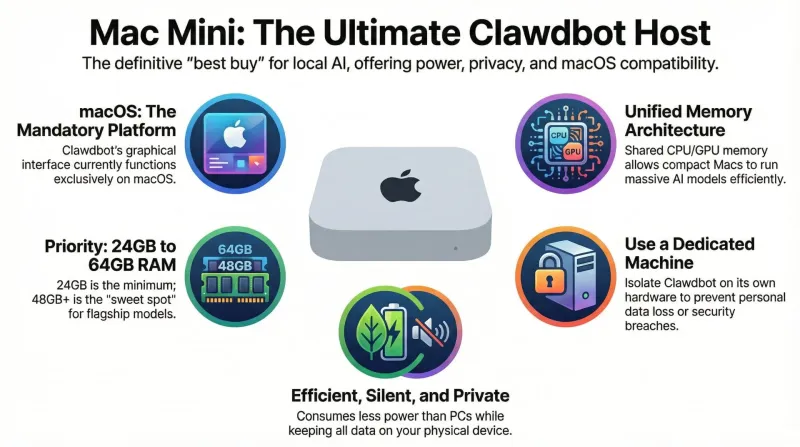
The Mac mini: The definitive "best buy" for your personal Clawdbot (OpenClaw) AI assistant
Why the Mac mini is the superior choice for a 24/7 private AI agent. We analyze hardware, security, and the ideal configuration for Clawdbot (OpenClaw).
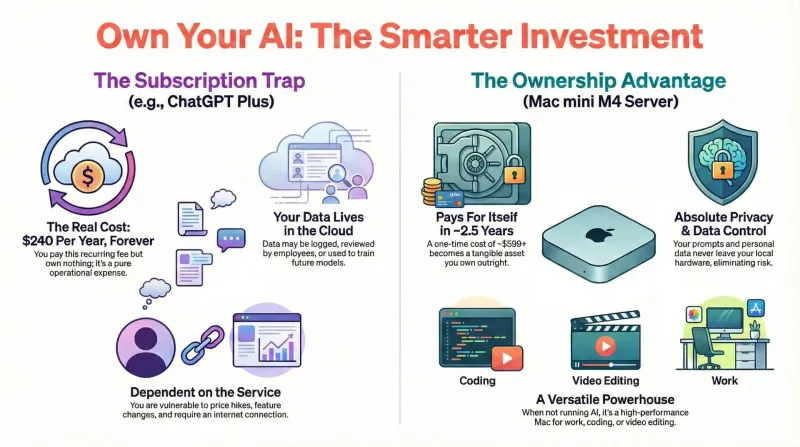
Mac mini M4 vs. ChatGPT subscription - The smartest tech investment you'll make this year
Stop renting your intelligence. We explain why the Mac mini M4 is the perfect local AI server, saving you money and protecting your privacy compared to ChatGPT Plus.
OpenClaw 2.0 is out: Team features, and a real security warning
OpenClaw 2.0 just shipped with team collaboration and a new browser UI - but sandboxing is disabled by default, and that matters if you're running it at home.