
Xbox Cloud Gaming for families: Devices, Game Pass plans and parental controls
Xbox Cloud Gaming explained for parents: which devices work, what each Game Pass plan includes, the internet you need, and the family settings to set first.
This post contains affiliate links. We may earn a commission if you make a purchase, at no extra cost to you. As an Amazon Associate, Dadnology earns from qualifying purchases.
☁️ Console games without the console
Xbox Cloud Gaming is the answer to a question many families ask sooner or later: can the kids play the Xbox games on something other than the Xbox? The answer is yes. The game runs on a Microsoft server, the picture is streamed to the device in front of your child, and the button presses travel back the other way. Nothing is downloaded, nothing has to fit on the tablet’s storage, and a game started on the console in the living room can carry on on a phone in the car.
That makes it tempting as a cheap way to get Xbox games onto every screen in the house. In part it is. But cloud gaming has rules that matter more to a parent than to a solo player: which devices are supported, which games are free, how much playtime each subscription includes, and which of the familiar parental controls actually reach a phone or a TV.
This guide goes through those rules in order. We own an Xbox Series X, and the facts here come from Microsoft’s own cloud gaming, Game Pass and family settings pages, checked in November 2026. We have left prices out on purpose: Game Pass prices and introductory offers change often, and Microsoft shows the current one when you sign in.
How Xbox Cloud Gaming works
The idea is simple. Instead of your console or PC doing the work, a server in a Microsoft data center runs the game and sends you a video stream of it. Your device only has to show that stream and pass on the controls, which is why a phone or a cheap streaming stick can play a game it could never run itself.
For a family, three things follow from that.
- No downloads, no storage worries. A game starts within moments, and the tablet’s storage does not fill up with a large install. That alone ends a common argument.
- Progress travels with the account. Saves, progress and add-ons are tied to the Xbox account, not to the device. A child who plays on the console in the afternoon can pick up the same save on a tablet at the grandparents’.
- The internet connection decides everything. Because every frame comes over the network, the quality depends on your Wi-Fi far more than on the device. A stream that is sharp in the living room can stutter in a bedroom at the far end of the house.
Microsoft also notes that streamed games can have limits compared with the installed version: saves only in the cloud, limited companion app support and limited support for some accessories. For most family games that makes no difference, but it is worth knowing before you buy a special headset or steering wheel for a streamed game.
Which devices work
The list of supported devices is longer than most parents expect. According to Microsoft, Xbox Cloud Gaming runs on:
- Phones and tablets: Apple and Android devices, through a supported browser at xbox.com/play.
- Windows PCs: in the Xbox app or a browser such as Microsoft Edge, Google Chrome or Safari.
- Xbox consoles: Xbox Series X|S and Xbox One, where streaming lets you try a game before you install it.
- Smart TVs and streaming sticks: select LG, Samsung and VIDAA OS-powered smart TVs, plus Amazon Fire TV.
- Handhelds and VR: Windows handhelds such as the ROG Xbox Ally X, and select Meta Quest headsets, where the game appears on a large virtual 2D screen.
Microsoft keeps the current device list at xbox.com/cloud-devices, and cloud gaming is only available in supported regions (xbox.com/regions). Check both before you count on a particular TV in the kids’ room.
The TV option is the one that changes things most for a family. A second television that has never had a console attached can become a gaming screen with nothing more than a controller, provided the TV is on Microsoft’s list and the Wi-Fi in that room is good enough.
If streaming to a handheld interests you more than streaming to a TV, our guide to handhelds and remote play for dads compares the devices that do it.
What it costs: free games and the three Game Pass plans
Free with a Microsoft account
You do not need any subscription for select free-to-play games. Microsoft names Fortnite as the example: log in at xbox.com/play with a free Microsoft account and it streams. For a family that only wants Fortnite on a tablet, that is the whole setup. Before you do it, our Fortnite age guide explains what the game involves for younger players.
The three Game Pass plans with cloud gaming
Everything else needs one of three Game Pass plans. Microsoft lists them like this:
| Plan | Games (Microsoft's figure) | Cloud playtime per month | Worth knowing |
|---|---|---|---|
| Game Pass Essential | 50+ | 5 hours | Online console multiplayer included |
| Game Pass Premium | 200+ | 10 hours | New Xbox-published games within a year of launch (excluding Call of Duty) |
| Game Pass Ultimate | 500+ | 15 hours | Also includes EA Play, Fortnite Crew and Ubisoft+ Classics |
| PC Game Pass | – | None | Does not include cloud gaming |
The monthly playtime is the number to look at first. Five hours a month is roughly one evening a week. It is enough to try games or to keep a child busy on a long car journey, but it runs out quickly if streaming is the main way a child plays. Fifteen hours, on Ultimate, is closer to a few short sessions a week.
Two details from Microsoft’s FAQ are easy to miss. The hours do not stack: if your account has Game Pass through a partner offer and Ultimate as well, the subscription with the higher allowance applies, not both added together. And the library differs by plan, region and platform, so a game in one plan’s catalog is not automatically in another’s. The full list of cloud-playable games is at xbox.com/play.
Games you own
Cloud gaming is no longer limited to Game Pass. You can stream select cloud-playable games you own or buy, including most Xbox Play Anywhere games, even when they are not in the Game Pass library. If you have Ubisoft+ Premium, supported games from that catalog can be streamed without buying them.
If you want to know whether cloud gaming works in your house before you commit, a single month of Xbox Game Pass Ultimate is the honest test: it has the largest allowance, and a month is long enough to try every device the kids would use.
The internet you need
Microsoft’s numbers are modest on paper: a minimum of 10 Mbps download, 20 Mbps for the best quality on consoles, PCs and tablets, and a 5 GHz Wi-Fi network or a mobile data connection.
In a family home, the minimum is not the number to plan with. While one child streams a game, someone else is usually watching a series, a phone is backing up photos, and a laptop is on a video call. All of that shares the same connection. If your download speed is close to Microsoft’s minimum, expect the game to suffer first.
Three practical points help more than a faster contract:
- Use 5 GHz, and stay near the router. Microsoft recommends 5 GHz Wi-Fi for a reason. In a bedroom two walls away, a mesh access point does more for the stream than a faster plan.
- Use a cable for the TV or console if you can. A wired connection removes most of the stutter that Wi-Fi brings.
- Be careful with mobile data. Streaming a game on the road works on a good mobile connection, but it uses data at the rate of a video stream. Check your plan before the long drive.
Controllers: touch or a real pad
On phones and tablets, select games support Xbox touch controls, with on-screen buttons laid over the game. They work for simple games and are a reasonable way to start. For anything faster, a controller is far better.
Microsoft lists the Xbox Wireless Controller and the Sony DualShock 4 among supported controllers, connected via Bluetooth or USB. If you already own an Xbox, the console’s controller pairs with a phone or tablet over Bluetooth, so you do not have to buy anything. If you need a second one, the standard Xbox Wireless Controller is the safe choice.
Our guide to the best game controllers for every setup covers the alternatives, including phone grips that turn a phone into a handheld.
Before a child plays: the family settings
This is the part to do first, not afterwards. Xbox family settings are tied to the child’s Microsoft account, so the order matters: family group, then the child’s account, then the settings.
1. Create a family group
Microsoft’s family group is free. You set it up in the Xbox Family Settings app or at account.microsoft.com/family and invite each child. Only a parent in the family group can change Xbox privacy and online settings for a child account, and the app shows whether each member is listed as a child or an adult.
2. Give each child their own account
A child who plays on a parent’s account gets the parent’s settings. Each child needs their own account in the family group, so that the age-based limits you set apply to them wherever they sign in.
3. Set content filters by age
Parents can filter or allow games, apps and websites based on each child’s age, and a child can request access to something blocked, which the parent then approves or declines. Xbox shows the ESRB rating on every game: E for everyone from 6, E10+ from 10, T from 13, M from 17.
4. Decide on multiplayer, chat and friends
The privacy settings let you allow or block a child’s ability to join multiplayer games, add friends, chat, join clubs and broadcast gameplay, and choose who can communicate with the child and who can see what they play. For younger children, friends-only or no chat is the sensible start. You find these settings on the console or at account.xbox.com/settings.
5. Control purchases
With Ask a Parent, you get an email when a child wants to buy a game or app and needs you to approve it. You can also add a fixed amount of money to the child’s account, which caps what they can spend on their own.
6. Screen time: where it reaches, and where it does not
Here cloud gaming needs extra care. Microsoft’s screen time limits, both daily device time and limits for specific games and apps, apply to Xbox consoles and Windows devices. On a phone, tablet or smart TV, the stream runs in a browser or an app on a device Microsoft’s screen time does not manage. Set limits on that device as well, with the parental controls its maker provides. Otherwise the limit you carefully set on the console simply moves to the iPad.
Pros
- No downloads: games start in moments and do not fill the tablet's storage
- Saves and progress follow the Xbox account from console to phone to TV
- Works on devices many families already own, including select smart TVs and Fire TV
- Fortnite and other free games need no subscription at all
- Family settings for content, chat and purchases apply to the child's account
Cons
- Every Game Pass plan now caps cloud play at 5, 10 or 15 hours a month
- PC Game Pass does not include cloud gaming
- Quality depends on your Wi-Fi more than on the device
- Xbox screen time limits cover consoles and Windows only, not phones or TVs
- Some accessories and companion apps are limited when streaming
Is it worth it for a family?
It depends on what you want it to replace.
As a second screen next to a console, yes. If you already own an Xbox, cloud gaming is a useful extra: the kids can keep playing on a tablet while the TV is busy, on holiday, or at the grandparents’. The Game Pass you may already pay for includes it, within the plan’s monthly hours.
As the only way the family plays, less so. The playtime caps are the problem. A child who would play most days runs through even Ultimate’s 15 hours well before the month is over. For a family whose main gaming happens through streaming, a console is still the better buy, and our Xbox Series X review explains why we rate it so highly.
For one free game, it is ideal. If a child only wants Fortnite or another free game on a tablet, cloud gaming does it with a free account and no extra cost. Do the family settings first.
For trying before buying, it is handy. On the console itself, streaming lets you start a Game Pass game straight away and decide whether it is worth the download. For a child who wants to try five games in an afternoon, that saves a lot of waiting.
If your children mostly play Minecraft, our Minecraft age guide covers the settings that matter in that game, on whatever device they play it.
The bottom line
Xbox Cloud Gaming is a good second screen for a family, not a replacement for the console. Fortnite and other free games stream with nothing but a Microsoft account; everything else needs Game Pass Essential, Premium or Ultimate, with 5, 10 or 15 hours of cloud play a month. Set up the family group and each child’s account first, add screen time limits on the phones and tablets themselves, and test your Wi-Fi with a single month before you commit.
The Final Word: Use the cloud for the tablet, the holiday and the free games, and keep the console for everyday play.
📌 FAQ
What is Xbox Cloud Gaming?
Is Xbox Cloud Gaming free?
How many hours of cloud gaming does Game Pass include?
What internet speed does Xbox Cloud Gaming need?
Can I set screen time limits for Xbox Cloud Gaming?
Do kids need a controller for Xbox Cloud Gaming?
Can we stream games we already own?
Keep this in your inbox
One email a week: what we actually watched, built and reviewed — the stuff worth a dad's time. No hype, no daily spam.
Dadnology Weekly
One email a week: the LEGO, gaming and movie news worth a dad's time — plus what we actually reviewed. No hype, no daily spam.
Disclaimer: This review and its visuals were created with the help of AI. Some links may be affiliate links – we may earn a commission if you make a purchase, at no extra cost to you.
Current deals in Gaming
Verified live discounts tracked on Amazon
Gaming · Tested by Dadnology
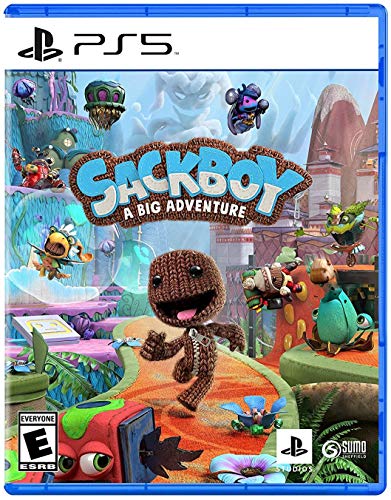
Sackboy: A Big Adventure (PS5)
4.5/5“Crafty co-op joy on PlayStation 5”Read our review
Gaming · Tested by Dadnology
The Last of Us Part I (PS5)
5/5“A masterpiece rebuilt for the modern era”Read our review
Gaming · Tested by Dadnology
Assassin's Creed: The Ezio Collection
4.5/5“The game that fixed everything and gave us Ezio”Read our reviewPrice as of Nov 13, 08:46 PM UTC
You might also like
PS5 and Xbox parental controls: The 20-minute setup that actually works
The exact menus, in order, for both consoles: age filters, voice chat, spending and screen time. Twenty minutes once, instead of an argument every month.
GTA 6 on PS5 vs Xbox: Which console should you actually buy? (2026)
GTA 6 lands November 19 on PS5 and Xbox Series X|S only. After 2026's price chaos, the Xbox costs $250 more for the same game. Here is the honest call.
What to play this week: Gears of War: E-Day, Epic Mickey: Rebrushed
This week: Gears of War: E-Day on day-one Game Pass, a free Switch 2 upgrade for Epic Mickey, and Ghost of Tsushima from the backlog.