
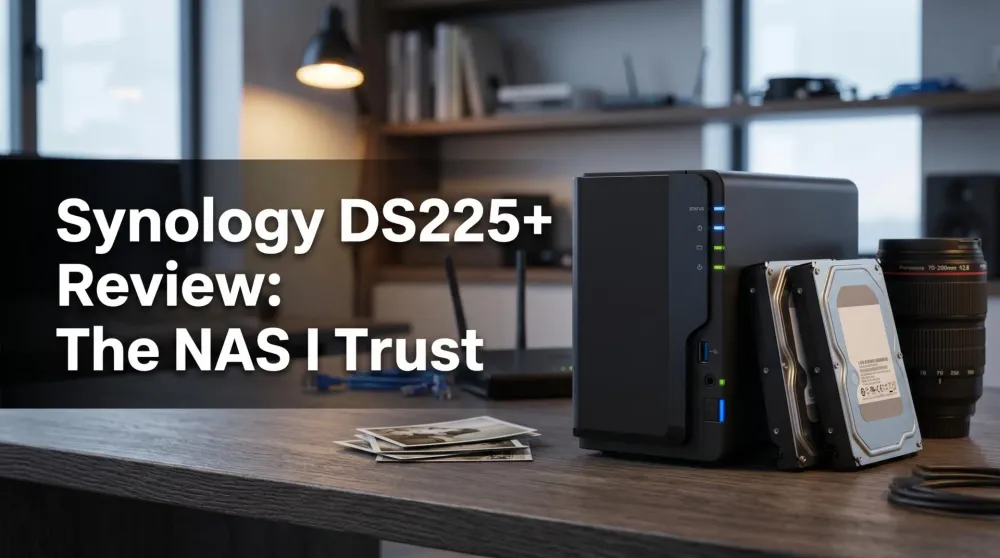
Synology DS225+ Review: The Home NAS I Trust With My Photos
After ten years on a Synology, the DS225+ is the 2-bay NAS I'd buy again to protect my photos, back up documents and stream family video.
This post contains affiliate links. We may earn a commission if you make a purchase, at no extra cost to you. As an Amazon Associate, Dadnology earns from qualifying purchases.
Introduction
💾 This review is part of the Synology NAS Hub – the home of every DiskStation, drive and setup guide we trust to keep a family’s photos safe.
My first Synology was a DS213. That little box ran flawlessly for over ten years, and here is the kicker: it is still running today, quietly humming in the background as a plain file server. In all that time it asked nothing of me. One drive eventually died, I slid in a replacement WD Red, and it rebuilt itself without drama. The only reason I retired it from front-line duty is that it stopped getting security updates — and for a box that holds your family’s entire life, that matters.
The Synology DS225+ is its successor, and I want to be honest about my bias up front: ten years of a product never letting you down creates exactly the kind of customer loyalty Synology was hoping for. When it was time for a new NAS, the brand was never in question. After living with the DS225+, the verdict is a confident 5/5 — a quiet, do-everything home server that does exactly the job it was built for. There was one early controversy worth addressing head-on, and I’ll get to it.
AdSynology DS225+ (2-Bay Diskless NAS) (opens in a new tab)
The 2025 2-bay DiskStation. Intel CPU with hardware transcoding, DSM software and Synology Photos — the private home cloud that actually earns the name.
This is not a spec-sheet review. A NAS is one of those rare pieces of dad-tech you buy once and then forget about for years, so the only review that matters is the one written by someone who actually lives with the thing. So let’s talk about why a NAS belongs in a family home at all — and then how to set it up so it genuinely protects what you care about.
This is the bit a spec sheet won’t tell you: the DS225+ is barely about the hardware. You buy a Synology for DSM, the operating system, and the apps that ride on top of it. The box is just the quiet, low-power vessel that runs it 24/7.
Why a NAS at All? The Photographer’s Case
For me, the answer is one word: photos. As a photographer, properly securing images isn’t a nice-to-have, it’s the whole job. A career’s worth of family memories and client work cannot live on a single laptop SSD that is one coffee spill away from oblivion.
So the foundation is two drives. I always recommend populating both bays and running them in SHR or RAID 1, because that gives you redundancy: if one drive dies — and over a long enough timeline, one will — the NAS keeps running on the other, and you swap the dead one without losing a single file. I have done exactly this on the old DS213, and “pull the dead drive, push in a new one, walk away” is as painless as data recovery ever gets.
A word on the drives themselves: use NAS-rated drives built for 24/7 duty. I run WD Red in my old box, and a Seagate IronWolf 8TB is exactly the same class of drive — designed to spin in a RAID array for years without flinching. Do not drop cheap desktop drives in here and hope for the best.
AdSeagate IronWolf 8TB NAS HDD (ST8000VN004) (opens in a new tab)
A NAS-rated drive built for 24/7 RAID duty. Pair two for SHR/RAID 1 redundancy. (I run WD Red in my old box — both are the right class of drive.)
But here is the single most important sentence in this entire review, and the one most people get wrong: two drives in a NAS are not a backup. Redundancy protects you from a hardware failure. It does nothing against an accidental deletion, a ransomware hit, a house fire or a thief walking off with the box. The NAS is your working copy. It still needs a real backup.
The Backup Reality: 3-2-1 Without the Jargon
This is where the external drives come in, and it’s a setup any dad can copy.
Everything on the DiskStation gets backed up to a big WD Elements 8TB desktop drive — a full mirror of the whole NAS. Then the photos that matter most, the irreplaceable ones, get a second copy on a smaller WD Elements 5TB portable drive.
The crucial habit: I don’t leave those backup drives plugged in. They get connected, the backup runs, and then they come off again. There are two reasons. First, a power surge that fries the NAS can’t reach a drive that isn’t connected to it — keeping a backup permanently attached defeats half the point. Second, the small portable drive can physically leave the house, which is the only real protection against fire or theft.
The result is a layered safety net that costs a fraction of a decade of cloud storage fees: the NAS for redundancy and daily access, the big external for a full backup, and the little portable for the photos I genuinely could not bear to lose. That, more than any feature, is the reason to own a NAS.
Synology Photos: A Private Cloud, Minus the Cloud
If the photo backup is the why, the Synology Photos app is the joy of actually using it. Invest a little time setting it up, and you get a genuinely fantastic way to browse your entire library from a phone or tablet — albums, timeline, faces, the lot — that feels every bit as slick as Google Photos or iCloud.
The difference is that it’s yours. There is no monthly fee that quietly climbs every year, and your family’s faces never leave your house. That last part is deliberate on my end: I use no Synology cloud services, and I allow no external access to the box. It is fully local. Yes, that means I can’t pull up a photo from a café across town — but it also means the single biggest attack surface on any NAS simply doesn’t exist on mine. For me, that trade is a no-brainer. The photos are sacred; convenience comes second.
And the same plumbing that protects photos protects everything else. Tax documents, scanned paperwork, the boring-but-vital admin of family life — it all flows into the same backup routine. One system, one habit, everything covered.
AdWD Elements 5TB Portable Hard Drive (opens in a new tab)
The grab-and-go copy of the photos that matter most. Small enough to live in a drawer, or leave the house entirely.
The Network Drive That Ties the House Together
The second use case I’d genuinely struggle to live without is the network drive. The DS225+ presents itself as a shared drive on the home network, which means every device in the house — my Surface, the Mac mini, an iPhone, an iPad — reaches the same files with zero fuss. No emailing documents to myself, no “which laptop is that on?”, no USB-stick shuffle. The data lives in one place and everyone draws from it.
For a household running a mix of Windows, macOS and iOS, that quiet interoperability is worth a lot. It just works, on everything, all the time.
Then there’s multimedia, and this is where the Intel CPU earns its keep. The DS225+ does hardware transcoding, which makes it a capable little media server. I’m a big fan of Jellyfin running in Docker — it’s free, private, open-source and genuinely excellent, and I can’t recommend it enough. You can also stream straight to a device with VLC over the network if you want zero setup.
Plenty of people will reach for Plex here, and it works fine on the DS225+ — I just don’t personally use it, preferring the Jellyfin route. Whichever you choose, the payoff is the same and it’s lovely: family videos, ready to play on the big TV through an Apple TV, without uploading a single private moment to anyone else’s servers.
DS225+ vs the Alternatives: The Honest Comparison
Most dads aren’t choosing between five NAS models. The real decision is “own vs rent” — a DiskStation versus another decade of paying a cloud provider.
| Feature | Synology DS225+ | 2TB Cloud Subscription |
|---|---|---|
| Up-front cost | One-time box + drives | Low to start |
| Long-term cost | Effectively zero after purchase | Rent forever, price creeps up |
| Capacity | Scales with your drives (16TB+) | Capped by your plan tier |
| Privacy | 100% local, your hardware | Your data on someone else's servers |
| Media streaming | Jellyfin / Plex, hardware transcoding | Not really the use case |
| Verdict | Buy once, own it for a decade | Convenient, but you never stop paying |
The table makes the call easy: unless you genuinely value not managing your own hardware, owning beats renting over any sensible timeline. A NAS pays for itself and then keeps going for a decade.
The Drive-Compatibility Drama (And Why It No Longer Counts)
I promised one asterisk, so let’s deal with it honestly — because for a few months in 2025 this was very nearly a dealbreaker, and any review that skips it isn’t being straight with you.
When the 2025 Plus line launched, Synology tightened its drive-compatibility policy, pushing hard toward Synology-branded or certified drives. Standard third-party disks threw warnings, and some health and pooling features were withheld unless you used “approved” hardware. For a brand whose entire appeal had always been “use any good NAS drive you like,” it was a genuinely tone-deaf move — and reviewers and long-time users, me included, let them have it.
Here’s the good news, and the reason it no longer drags the score down: Synology backed down. With DSM 7.3, rolled out in October 2025, they did a full 180 for the 2025 Plus models:
- Free drive choice is back. You can fit standard NAS drives from Western Digital, Seagate or Toshiba in the DS225+ again, no problem at all.
- No more nag warnings on classic 3.5-inch HDDs or 2.5-inch SATA SSDs. The artificial limitations were stripped out, and migrating existing third-party drives into the box works exactly as it always has.
The one remaining caveat sits with M.2 NVMe SSDs. If you want to add NVMe — as a read/write cache or as a fast storage volume — Synology still points at its own compatibility list for the 2025 models, which in practice nudges you toward their pricier M.2 sticks. For me that’s a complete non-issue: I run spinning NAS drives for bulk photo storage and never touch NVMe in this box, and I suspect the same is true for the overwhelming majority of family users. The only person this still pinches is someone who specifically wanted a cheap third-party NVMe cache — a niche within a niche.
Net result: the thing that almost cost Synology a point fixed itself. Buy the drives you’d have bought anyway, slot them in, and get on with your life. That, frankly, is a company listening to its customers — and it’s a big part of why this lands as a 10.
From DS213 to DS225+: The Long-Term View
Here’s what ten years with the predecessor taught me, and why I’d buy Synology again without hesitation. The DS213 didn’t just survive — it was boring in the best possible way. It never crashed, never lost data, handled a drive failure gracefully, and kept getting software updates long after I’d stopped thinking about it. When the updates finally stopped, it didn’t die; it just got demoted to file-server duty, where it still sits today.
That is the entire value proposition of a Synology. You are not buying a gadget to fiddle with on weekends. You are buying a quiet, reliable appliance that protects the most irreplaceable data your family owns, and then disappears into the background for the better part of a decade. The DS225+ is set up to do exactly that for the next ten years — and the years of trust the old box earned are precisely why this purchase was never in doubt.
Pros
- DSM software and the Synology Photos app are best-in-class — the real reason to buy
- Intel CPU with hardware transcoding makes Jellyfin/Plex streaming smooth
- A private cloud with no monthly fee and no data leaving your house
- Effortless redundancy: a failed drive is a five-minute swap, not a crisis
- Synology reversed its controversial 2025 drive lock in DSM 7.3 — free choice of WD/Seagate/Toshiba again
- Long-term software and security support is superb — a decade is realistic
Cons
- M.2 NVMe SSDs are still tied to Synology's list (a non-issue unless you want a cheap NVMe cache)
- Two bays only; heavy users who'll want four should look up the range
- Remember: two drives is redundancy, NOT a backup — you still need external drives
Conclusion: The Quietest, Most Important Box in the House
After a decade on Synology and hands-on time with the new model, the verdict on the DS225+ is a clear buy for the right person. If you have a growing photo library you can’t afford to lose, documents to protect and media you’d love to stream privately, this is the most capable, lowest-fuss home server you can put on a shelf.
If you only need to back up a handful of files now and then, a cheap external drive is enough — you don’t need this. But for a photographer dad, or any family serious about owning rather than renting their digital life, the DS225+ is the foundation everything else sits on.
The Final Word: The best private home cloud for families in 2026 — just back it up properly. With the DSM 7.3 drive U-turn, there’s no asterisk left to worry about.
Related Dadnology news: Synology DSM 7.4’s new AI agent features run right on this NAS.
Is the Synology DS225+ worth it for a home user?
Do two drives in a NAS count as a backup?
Which hard drives should I use in the DS225+?
Does the DS225+ force you to use Synology-branded drives?
Can I use the DS225+ as a media server without Plex?
Is it safe to use a NAS without opening it to the internet?
How long will a Synology NAS last?
Keep this in your inbox
One email a week: what we actually watched, built and reviewed — the stuff worth a dad's time. No hype, no daily spam.
Dadnology Weekly
One email a week: the LEGO, gaming and movie news worth a dad's time — plus what we actually reviewed. No hype, no daily spam.
Disclaimer: This review and its visuals were created with the help of AI. Some links may be affiliate links – we may earn a commission if you make a purchase, at no extra cost to you.
You might also like
Synology DSM 7.4 Is Here — The AI Agent Lands on Your NAS
Dadnology's take: DSM 7.4's AI agent is a genuine glimpse of where the NAS is heading, but most of the headline AI needs GPU hardware home users don't own — and the DSM Agent's processing path is still murky. For a local-first photo vault, wait, don't rush.
Samsung T7 Shield Review: The Drive That Fixed Apple's Storage Pricing
The external SSD we recommend in almost every Mac guide we write, and the one actually plugged into our own desk. Fast, pocket-sized, IP65-rated and a fraction of what Apple charges for internal storage.
MacBook Neo Review: A Windows Family Switches to Mac
Bought as a second school machine by a Windows family, the MacBook Neo made a switch we expected to be painful almost boring. The Photos app alone justifies it if you carry an iPhone. 5/5 after a few weeks - with the honest note that a few weeks is what this is.