
Essential accessories for Apple Vision Pro: 11 must-haves for daily use, workflows, and gaming
Discover the best accessories for the Apple Vision Pro – from productivity tools and protection to battery support and gaming gear.
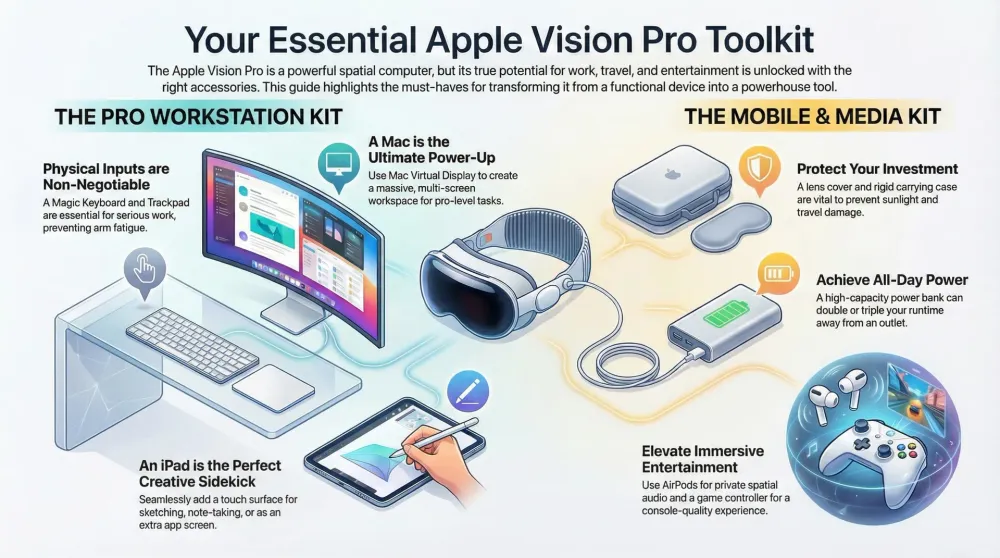
This post contains affiliate links. We may earn a commission if you make a purchase, at no extra cost to you. As an Amazon Associate, Dadnology earns from qualifying purchases.
Why accessories matter for Apple Vision Pro
🥽 This guide is part of our Apple Vision Pro Hub — Mac Virtual Display workflows and the accessories that actually help at work and home.
The Apple Vision Pro is an enormously flexible device, but it arrives with a paradox baked in: the base experience is impressive, yet the ceiling is far higher than the out-of-the-box experience suggests. Without the right accessories, you’re using a spatial computer that’s constrained by hand gestures alone. With them, you’re running a genuine workstation — or a personal cinema, or a spatial gaming setup — that happens to fit in a travel case.
The difference isn’t cosmetic. A Magic Trackpad fundamentally changes how manageable long work sessions are. A lens protector is cheap insurance for hardware that costs as much as a used car. A power bank doubles your runtime. The Vision Pro doesn’t require any of these — but it rewards them with capabilities that feel qualitatively different from the base device.
This guide is organized by priority tier, not by price or novelty. The accessories you need day one are different from the ones that enhance an already-working setup.
Priority Tier 1: Protection and essential input
These are the accessories that should arrive before or alongside the Vision Pro itself — not because they’re optional add-ons, but because two of them fundamentally redefine what the device is. The lens protector safeguards an investment you cannot reverse: scratched internal lenses aren’t a cosmetic issue, they’re an expensive repair on a headset that cost thousands to begin with. Slipping the protector on takes thirty seconds. Skipping it takes exactly one bad storage moment to regret permanently.
The Magic Trackpad is the other category-changing item. Without it, the Vision Pro is a spatial consumption device — genuinely impressive for movies, browsing, and casual apps, but constrained by mid-air gestures for anything serious. With it, the device becomes a workstation. That’s not marketing language; it’s the functional difference between spending four hours at a desk getting work done versus spending forty minutes before your arms give out. The trackpad belongs in your order before the device arrives, not as an afterthought two weeks later.
1. Apple AirPods Pro (3rd Gen) – Private audio, anywhere
The Vision Pro’s built-in speaker system is genuinely impressive for a headset — wide, spatially accurate, and surprisingly detailed. The problem is that it’s also audible to everyone in the room. The AirPods Pro (3rd Gen) solve this: they deliver immersive Spatial Audio privately, with Active Noise Cancellation that blocks ambient room noise and prevents the visual immersion from being undermined by sound leaking in from outside.
For dads specifically: late-night Apple TV watching, conference calls in shared spaces, and any session where you need focus without disturbing the rest of the household all benefit directly from AirPods. They pair instantly with the Vision Pro via iCloud and stay connected with near-zero latency. The Adaptive Transparency mode means you can stay aware of your surroundings — hear if a child calls out — without removing either the headset or the earbuds.
2. Apple Magic Trackpad – Precision without arm fatigue
If you use the Vision Pro for more than casual browsing, the Apple Magic Trackpad is essential. The issue is “gorilla arm” — the fatigue that sets in after sustained periods of mid-air hand gestures. Apple’s gesture system is elegant for short interactions; it’s impractical for four-hour work sessions.
The large glass trackpad surface offers precise cursor control for Mac Virtual Display workflows, text editing, and UI navigation — all without lifting your hands. Scrubbing through a video timeline, managing spreadsheets, editing photos in Lightroom — these tasks become fluid and natural instead of laborious. The trackpad anchors your spatial experience to a familiar physical interface, combining the immersion of spatial computing with the productivity of desktop input.
It also integrates with visionOS’s window placement system: you can drag, resize, and position virtual windows with precision that gesture-only control doesn’t reliably provide.
3. Apple Magic Keyboard – Productivity unlocked
A physical keyboard is non-negotiable for serious work. With the Apple Magic Keyboard, the Vision Pro transforms from a consumption device into a genuine workstation. The Vision Pro’s passthrough cameras render the keyboard clearly even while you’re fully immersed in an Environment — you can type at full speed in a virtual mountain cabin and see your actual keyboard without switching modes.
Whether you’re writing long documents, coding, composing emails, or navigating desktop apps with keyboard shortcuts, physical tactile feedback enables speed and accuracy that virtual floating keyboards or voice dictation can’t match. This is the accessory that turns “I can do basic stuff in the Vision Pro” into “I can do my actual job in the Vision Pro.”
4. KIWI Design VR Lens Protector Cover – Cheap insurance
The internal glass lenses of the Vision Pro are extremely sensitive and expensive to repair. Direct sunlight through the pass-through cameras, dust particles, or accidental contact from loose accessories can damage the displays in ways that are costly to fix. The KIWI Lens Protector Cover is a simple, low-cost cushion that prevents all of this.
It’s a “put it on and forget it” accessory — you never think about it, it takes up no space, and it sits between your hardware investment and the several ways it can be damaged. If you’re going to buy one thing on this list that isn’t an input device, make it this. The cost-to-protection ratio is absurd in its favor.
Priority Tier 2: Travel, power, and expansion
These accessories matter most if you use the Vision Pro outside the home, or if you want to extend runtime beyond the battery pack’s limitations.
5. AMAZEAR 10-in-1 carrying case set – Travel-ready
If you take the Vision Pro anywhere — office, hotel, parents’ house, flight — you need proper protection. The AMAZEAR Carrying Case provides a rigid, organized home for the headset, battery pack, cables, adapters, and spare straps. Everything has a place, and the rigid structure protects the Vision Pro’s external glass from the impacts that a soft bag can’t.
The practical benefit isn’t just protection from damage. It’s the reduction of friction around taking the headset out: when everything has a slot and a setup ritual, you’re more likely to actually bring it and use it. A Vision Pro sitting permanently on a desk because travel setup is annoying is a Vision Pro not justifying its cost.
6. Anker 737 Power Bank – Infinite runtime
The Vision Pro’s included battery pack is rated by Apple at up to 2.5 hours of general use and up to 3 hours of video playback. That’s enough for a movie, but not for a travel day, a full workday, or an extended gaming session. The Anker 737 Power Bank offers massive 24,000mAh capacity with high-wattage output: it can charge the Vision Pro battery pack while you’re using it — effectively removing the runtime limit entirely — and simultaneously fast-charge a MacBook and an iPad from the same unit.
For travel, this changes the equation entirely. A transatlantic flight becomes a 10-hour Vision Pro session rather than a 2.5-hour one. The power bank also means the Vision Pro is useful in spaces without convenient power outlets — outdoor areas, transit, anywhere you’d normally be limited by the battery pack alone.
7. Anker USB-C to USB-C Cable (240W, 2-pack) – Reliable, fast charging
High-quality cables are unglamorous but critical. Standard USB-C cables vary enormously in actual capability — many don’t support the wattage they’re rated for, and some introduce data transfer issues. The Anker 240W cables are rated for the full output of any device in this ecosystem, with durable braided design that holds up to the repeated pack-and-unpack cycle of travel use.
Having two means you can charge the Vision Pro battery and a MacBook simultaneously without hunting for the “right” cable from a tangle of options. It’s a small thing that removes a low-grade daily annoyance.
Priority Tier 3: Gaming, power workflows, and advanced use
These accessories unlock specific capabilities. Worth adding once you know your use patterns.
8. PlayStation DualSense Wireless Controller – Gaming unlocked
Using the Vision Pro as a gaming display — via console streaming through a Mac or native iPad game support — requires proper input. The PlayStation DualSense provides low-latency precision, adaptive triggers, and haptic feedback that hand gestures categorically cannot replace for fast-paced games. Bluetooth pairing to an iPad or Mac running the game stream is straightforward.
The result: a 150-inch personal gaming screen with controller input that rivals any dedicated gaming setup, at a price point (just the controller) that’s accessible once you already own the Vision Pro and a capable Mac.
9. Apple MacBook Pro 14-inch (M5) – The mobile powerhouse
The Vision Pro reaches its highest potential when paired with a powerful Mac host. The MacBook Pro M5 provides sustained performance for demanding creative workflows — 4K video editing, RAW photo processing, complex 3D modeling — while the Vision Pro becomes an infinitely scalable spatial display. The combination creates a portable professional setup: the Mac fits in a bag, and the “monitors” are virtual, adjustable to any size, and available anywhere.
For professionals who previously needed a studio full of monitors, this configuration is a genuine workflow change — not a novelty.
10. Apple Mac mini (M4 Pro) – The stationary powerhouse
If your Vision Pro use is primarily stationary — a home office or dedicated workspace — the Mac mini M4 Pro offers the same Mac Virtual Display capability as the MacBook Pro at a more favorable price point. It runs silently, occupies minimal desk space, and acts as an always-on host for spatial workflows. The “headless” configuration — Mac mini with no physical monitor, using Vision Pro as the sole display — is the cleanest possible spatial computing setup and one of the most discussed Vision Pro configurations in the enthusiast community.
11. Logitech MX Master 3S – Desktop precision
The trackpad is superior for gestures and visionOS-native interaction. For traditional desktop workflows — spreadsheets, detailed editing, document work — a precision mouse like the Logitech MX Master 3S is faster and more accurate. Its electromagnetic scroll wheel and customizable buttons complement Vision Pro for users who are bridging spatial and traditional desktop work. Particularly useful for timeline editing, spreadsheets, and detail-oriented work where the trackpad’s gesture controls feel imprecise.
12. Apple iPad 11-inch – The creative companion
The iPad 11-inch serves as a physical surface for tasks that benefit from tactile input alongside the spatial environment. Quick sketches, handwritten notes, app prototyping with Apple Pencil — the Vision Pro provides the visual workspace, the iPad provides the physical canvas. Universal Control allows seamless cursor movement between spatial apps and the iPad. For designers and visual thinkers, this combination is particularly powerful.
🗓️ Building your setup in stages: A practical timeline
Not everything on this list should be purchased simultaneously. Beyond the obvious budget argument, there’s a more practical reason to stage your buying: you don’t yet know which of the three Vision Pro use patterns you’ll settle into. Buying everything at once means buying for a workflow you haven’t confirmed yet.
Month 1 — The Non-Negotiables (roughly $400 total)
Three items, in order: lens protector first (protecting an expensive investment before it’s at risk costs less than a round of drinks), Magic Trackpad second (gorilla arm fatigue sets in within the first week of any serious use — the trackpad eliminates this permanently), AirPods Pro third if you don’t already own them. The AirPods matter immediately for anyone with a household — late-night sessions, shared rooms, and calls where the Vision Pro’s open speakers are a non-starter. These three items address the three most common friction points that new Vision Pro owners report in the first month.
Months 2–3 — Once You Know Your Pattern
By this point, you’ve established whether you’re using the Vision Pro primarily as a productivity tool, an entertainment platform, or something in between. If you’re traveling with it, the carrying case and power bank belong on the list now — without them, travel use is either risky (no case) or limited to two-hour windows (no power bank). If your usage is desk-bound and work-focused, the Magic Keyboard joins the setup. Most people discover they slot fairly clearly into one of three patterns: productivity-first (desk, Mac paired, keyboard essential), entertainment-first (couch, streaming, gaming), or creative-work-first (iPad companion, sketch workflows, visual production). The pattern determines the next purchases.
Months 4–6 — Specialization
The accessories that unlock specific capabilities — DualSense for gaming, MacBook Pro for mobile professional work, Mac mini for the stationary headless setup — only make genuine sense once you’ve confirmed that those workflows actually exist in your life. The DualSense is a straightforward buy if you’re gaming; it’s a drawer ornament if you’re not. A Mac mini purchase justified primarily by Vision Pro pairing assumes you’re actually going to use that workflow daily, not just for the first weekend.
The key insight: every accessory on this list is genuinely useful. Not every accessory is useful to you on day one. Buy the protection and input layer first. Let two months of real use tell you what to buy next.
📊 What gets used daily vs. What gets used occasionally
After sustained daily use, the honest frequency report looks like this — which is more useful than any spec sheet.
Used every single session: Magic Trackpad for any session involving more than casual browsing. Lens protector at all times (set-and-forget; you stop noticing it immediately). AirPods Pro for any session after 10pm or in a shared room — the Vision Pro’s open speakers are genuinely impressive until they’re not appropriate for the context.
Used most sessions: Power bank for anything exceeding two hours or any use outside the home. Carrying case whenever the headset leaves the desk. These two items become automatic once you’ve experienced their absence.
Used for specific workflows: DualSense exclusively during gaming sessions. Mac connection (MacBook or Mac mini) for productive work requiring desktop-class software. iPad companion primarily for creative and sketch workflows where a physical drawing surface adds value the spatial environment alone doesn’t replace.
Rarely used or situational: The Logitech MX Master 3S tends to replace the trackpad for users doing heavy spreadsheet work, timeline editing, or anything requiring pixel-precise cursor control — for those tasks, a proper mouse is faster. But for visionOS-native interactions (window placement, spatial navigation, standard app use), the trackpad is actually the better tool; the mouse is for bridging the gap back to traditional desktop paradigms. The Studio Display, if you own one, becomes a useful calibration reference for output work but isn’t a daily Vision Pro driver once your Mac Virtual Display workflow is established.
The honest verdict: You need four or five accessories. The other seven are genuinely good but address increasingly specific use cases. Start with the protection and input layer. Everything else follows your workflow — not the reverse.
Pros
- Trackpad and keyboard eliminate the primary practical limitation of long Vision Pro sessions
- Lens protector provides outsized protection value at minimal cost
- Power bank completely removes runtime as a constraint for travel and extended use
- DualSense unlocks a gaming setup that no fixed display can replicate
- Mac mini or MacBook Pro pairing elevates Vision Pro from headset to full professional workstation
- Most accessories serve the entire Apple ecosystem, not just Vision Pro
Cons
- Full setup cost with all accessories significantly increases total investment above the headset price
- Best accessories are Apple-first — investment ties you deeper into the Apple ecosystem
- Carrying case adds bulk to travel; Vision Pro is already a large item to pack
- Gaming via capture card requires additional hardware and configuration beyond this list
Build your setup in tiers
The Vision Pro doesn’t need every accessory on day one. Start with the lens protector (non-negotiable), add the Magic Trackpad (immediately improves long sessions), and build from there based on how you actually use the device. The accessories that matter most depend entirely on whether you’re using it primarily for productivity, entertainment, or creative work — and that answer only becomes clear after a few weeks of use. Buy the protection first. Everything else follows your workflow.
Related Dadnology guides: Beyond the Hype · Spatial Computing at Home · YouTube is Finally Native on Apple Vision Pro
Buy now(Ad)
📌 FAQ – Accessories for Apple Vision Pro
Do I absolutely need accessories like a keyboard or trackpad for the Vision Pro?
Can I use the Vision Pro effectively without a Mac?
Are all these official Apple accessories?
Are these products useful for other Apple devices too?
What accessories should I buy first if I am on a limited budget?
Keep this in your inbox
One email a week: what we actually watched, built and reviewed — the stuff worth a dad's time. No hype, no daily spam.
Dadnology Weekly
One email a week: the LEGO, gaming and movie news worth a dad's time — plus what we actually reviewed. No hype, no daily spam.
Disclaimer: This review and its visuals were created with the help of AI. Some links may be affiliate links – we may earn a commission if you make a purchase, at no extra cost to you.
Current deals in Tech & gadgets
Verified live discounts tracked on Amazon

Tech & gadgets · Tested by Dadnology
Samsung T7 Shield 2TB
5/5“Small, fast, and genuinely hard to break”Read our review

You might also like
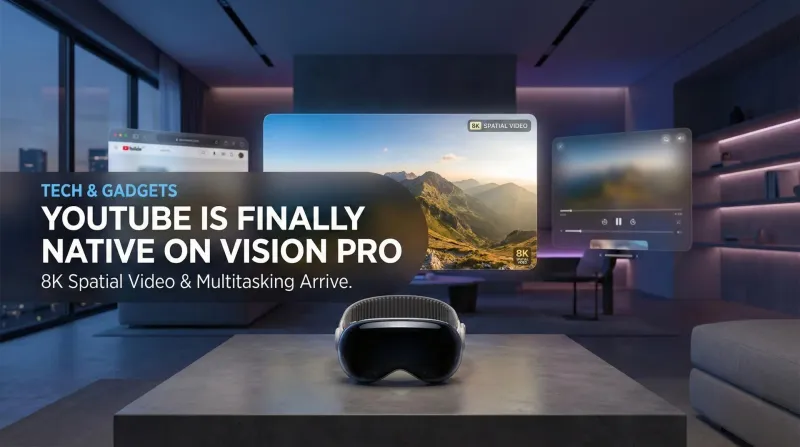
YouTube is finally native on Apple Vision Pro: Here is why it changes everything
No more Safari workarounds. Google has finally released the native YouTube app for visionOS. Here is a breakdown of the 8K, 360°, and multitasking features.
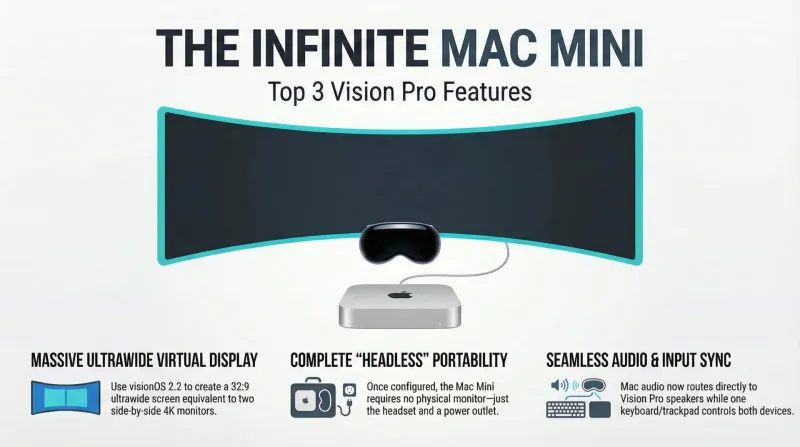
Spatial computing at home: The Dadnology guide to Mac Virtual Display
Ditch the triple-monitor clutter. Learn how to turn your Mac Mini into a 100-inch virtual workstation using the Apple Vision Pro.

Hoppers (2026) review: A brilliant nature premise loses its way
Hoppers starts with one of Pixar's cleverest high-concept pitches in a decade before completely abandoning its grounded heart for manic cartoon slapstick. Saved by reference-grade animation that looks breathtaking on Apple Vision Pro, it lands at an honest 3.5/5.