
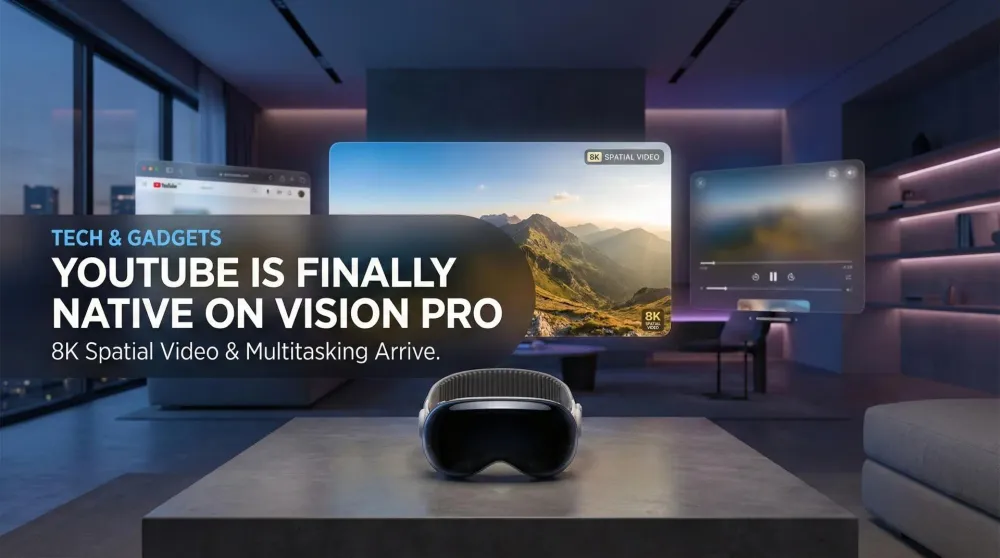
YouTube is finally native on Apple Vision Pro: Here is why it changes everything
No more Safari workarounds. Google has finally released the native YouTube app for visionOS. Here is a breakdown of the 8K, 360°, and multitasking features.
This post contains affiliate links. We may earn a commission if you make a purchase, at no extra cost to you. As an Amazon Associate, Dadnology earns from qualifying purchases.
1. The wait is over: YouTube goes native
🥽 This guide is part of our Apple Vision Pro Hub — Mac Virtual Display workflows and the accessories that actually help at work and home.
For the first year of the Vision Pro’s life, watching YouTube was a study in workarounds. You either opened it through Safari — functional, but missing the visionOS magic entirely — or you paid for third-party apps like Juno, which did an admirable job of wrapping YouTube’s web interface in a native shell but lacked full API access to the platform’s advanced features. It worked. It wasn’t the experience this hardware deserved.
The frustration wasn’t just aesthetic. Safari YouTube meant no spatial awareness, no window memory between sessions, no visionOS Focus integration, and no Spatial Audio anchoring. You were essentially watching YouTube on a very expensive floating iPad browser. The gap between what the Vision Pro was capable of and what the most-watched video platform on earth was delivering had become embarrassing — like pairing a concert grand piano with a phone speaker.
Google has finally answered, and the result is worth the wait. The official YouTube app isn’t an iPad port with slightly bigger buttons — it’s a fully rethought experience designed around what the Vision Pro actually does: combine a massive personal screen with spatial awareness, gesture control, and the ability to float windows in your physical space. The app arrives with complete visionOS compliance: it respects your environmental scale, supports hand tracking and eye gaze navigation out of the box, and integrates properly with Focus modes and the notification stack that makes the Vision Pro useful as more than just a TV replacement.
At Dadnology, we believe this changes the calculus on whether Vision Pro is “worth it” for entertainment. Previously, the answer was a qualified “sort of.” With this app, it tips firmly toward yes.
What actually surprised us during the first week: the app remembers window placement between sessions. You position your YouTube window once — size, height, angle relative to your couch — and it is exactly there next time you open the headset. That sounds trivial until you realize how many times you repositioned the Safari version by hand. It isn’t a feature you’d list on a spec sheet, but it’s the kind of thoughtful detail that signals this was built by people who actually used the hardware. For dads who only get 45 minutes of uninterrupted screen time before someone needs water or has a bad dream, that zero-setup immediacy matters more than any spec.
The onboarding experience is also significantly cleaner than the workaround era. Signing into your Google account through the native app respects the OS-level credential manager, which means if you’re already signed into Google through Safari or another app, YouTube picks up the session automatically. No typing passwords with eye-tracking and finger-pinching on a virtual keyboard — which, for the record, is a uniquely joyless experience. First launch was literally faster than making tea. Your subscription feed, watch history, and playlists appear exactly as you left them on every other device, instantly. The continuity of experience across your Google account is something you take for granted on a phone and appreciate deeply when the headset finally delivers it.
2. Immersive content: The “spatial” tab
The standout feature of the new app is the dedicated Spatial Tab. This is where the Vision Pro truly flexes its muscles — and where the gap between watching on a laptop or even a 65-inch TV becomes viscerally obvious.
360° and 180° Videos: You can jump into 8K immersive travelogues, live concerts, and nature documentaries. As you physically turn your head, the environment turns with you. This isn’t a gimmick. Watching a live concert recording in 180° spatial video feels closer to being in the crowd than any traditional screen experience. The micro-OLED displays’ contrast ratio makes night-time events — city time-lapses, fireworks shows, lit stages — look legitimately cinematic. The first time you watch a properly shot 360° nature documentary, you’ll sit very still and not say anything for a few minutes.
8K HDR Support: The clarity of YouTube’s high-bitrate content on the Vision Pro’s micro-OLED displays is genuinely different from any other screen you’ve used. Channels that post in 8K and take color grading seriously — travel cinematographers, landscape photographers, documentary crews — look distinct on this device. Details resolve that simply don’t exist at typical viewing distances on a flat screen. A properly graded drone shot over a rainforest in 8K HDR is, without exaggeration, the closest thing to a window. Worth noting: not all “8K” YouTube uploads are created equal. A 4K master upscaled to 8K still looks good; a native 8K shoot with serious color grading looks extraordinary. You’ll develop a quick sense for which channels deliver real quality — and you’ll start seeking them out deliberately.
3D Stereoscopic Video: Native support for 3D content means specialized cinematic clips have depth that feels real. As the spatial video ecosystem grows — and it is growing, steadily — this tab will only become more compelling over time. This is the section of the app that justifies the hardware’s price more than any other, and it will age well as creator adoption increases.
For Family Use: If your household uses YouTube Kids or family-linked Google accounts, content restrictions carry over properly. Properly configured with OS-level screen time limits and a family Google account, the Vision Pro becomes a genuinely excellent way for kids to watch tutorials and educational content in a controlled, immersive environment — and you can hand it over with confidence knowing the content filters are intact. That said, the Vision Pro’s passthrough cameras are not designed for extended wear by children, and Apple’s own guidance recommends against use by anyone under 13. Worth reviewing the actual Apple guidance before letting the kids in — this is one area where the hardware’s capability and the responsible usage recommendation are not fully aligned.
The thing that didn’t work as expected: switching between regular 2D content and Spatial Tab content involves a noticeable loading transition. The app doesn’t instantly drop you into the immersive environment — there’s a 2-3 second handoff as the display system re-configures. Minor in isolation, noticeably disruptive if you’re hopping between a playlist and a single spatial video. It’s not a bug so much as the reality of how demanding the mode switch is. Also worth knowing: the Spatial Tab doesn’t autoplay the next video in a playlist if the preceding video was standard 2D. You’ll return to the regular app view and have to manually navigate back. One extra step, but enough friction to change how you queue things up if immersive content is the goal. The practical workaround is to build a dedicated Spatial Tab playlist rather than mixing content types in a single queue — treat it like a separate mode of watching, not a seamless upgrade from regular playback.
3. Navigation reimagined: Why you need a trackpad
While eye-tracking and finger-pinching are elegant for casual browsing, navigating a complex video library or scrubbing through a 2-hour podcast timeline becomes tedious without physical input. Apple’s gesture system excels at discovery; it’s less suited for precision timeline work.
This is where the Apple Magic Trackpad becomes essential. Using a trackpad allows you to scrub through video timelines with pixel-level accuracy — the same fluid control you’d use editing a timeline in Final Cut. Managing the multitasking layout also becomes second nature: keep a YouTube tutorial pinned to the left, your Mac Virtual Display front and center, and a Safari reference page floating to the right, all controlled from your lap without lifting your arms.
Beyond scrubbing, the trackpad changes how you navigate playlists and queues. Swiping through a 200-video playlist by repeatedly pinching in the air becomes exhausting inside fifteen minutes. With a trackpad in your lap, it’s the same muscle memory as switching browser tabs. The glass surface supports all standard visionOS gestures: scroll, zoom, two-finger swipe, and the app-specific controls YouTube exposes through its visionOS API.
Practical setup tip: Combine trackpad use with visionOS’s window placement system. Set the YouTube window to your preferred size — roughly 100-inch equivalent is the sweet spot for content watching — and pin it to a specific wall in your space. Subsequent sessions will remember the placement. If you have a dedicated corner for focused work or relaxation, this creates a persistent home theater that re-appears every time you put on the headset, without repositioning anything. The “sweet spot” size is also worth calibrating: Vision Pro lets you push the window to absurdly large dimensions, but beyond about 120-inch equivalent, reading on-screen text becomes uncomfortable as your eyes move too far horizontally. Think of it like sitting too close to a cinema screen rather than too far — technically impressive, practically exhausting.
Something that surprised us: the eye-gaze system in the native app is meaningfully better calibrated for scrubbing controls than the old Safari version. The chapter markers along the bottom of a video respond to gaze before you pinch — you can look at a chapter name and the tooltip pops up. Combined with trackpad precision for actually jumping there, the experience covers two separate user needs that Safari completely ignored. The surprising failure, though, is chapter navigation via voice. Siri integration works fine for “Hey Siri, pause YouTube” but asking it to jump to a specific chapter or timestamp returns an error more often than not. For dads who want hands-free control while, say, folding laundry with the headset on, voice navigation is not yet reliable enough to replace the trackpad.
The one navigation area the trackpad doesn’t fully fix: the subscription feed on a large virtual screen. YouTube’s home feed is designed for vertical phone scroll, and even scaled to a large visionOS window it retains that portrait-oriented density. A single scroll gives you maybe six thumbnails. If you have an active subscription list and prefer to browse rather than search, the feed feels underutilized at Vision Pro scale — there’s simply a lot of empty space where more content could live. Worth noting before you write off phone-browsing entirely: for discovery and subscription management, the phone still wins on ergonomics.
4. Setting the mood: Smart home integration
One of the best features discovered by the Vision Pro community is the integration with smart lighting via visionOS Shortcuts. Using Philips Hue (or any HomeKit-compatible system), you can trigger a “YouTube Mode” scene that dims overhead lights and shifts the room’s ambience automatically when you open the app.
Pairing the experience with a Philips Hue Lightstrip behind your display area or furniture takes the concept further: set a deep amber for evening travel vlogs, cool blue for concert recordings, neutral white for documentary viewing. The effect feels subtle at first and then quickly becomes indispensable — the difference between a screen sitting in a room and a theater that the whole room becomes.
Shortcut recipe for dads: Create a visionOS Automation that triggers when YouTube opens — dims overhead lights to 10%, activates your cinema Hue scene, and sets a 90-minute Screen Time reminder. Run it once, and your private screening ritual is three seconds from the moment you sit down. The Vision Pro already removes the ceiling on how large your virtual screen can be; smart lighting makes the physical room match the mood of what you’re watching, so the whole space becomes the experience rather than just the headset on your face.
The practical recommendation for getting started: don’t overthink the scenes. A single “Dad Cave” scene with warm, dim lighting that triggers on YouTube app launch covers 90% of use cases. If you watch a wide variety of content and want distinct moods, add a second “Documentary/Work” scene with cooler neutral white at around 30% brightness — reserved for long-form educational viewing. Two scenes covers the whole range without the setup overhead of building a scene per channel or genre, which sounds appealing in theory and becomes a maintenance burden immediately.
It’s worth being honest about the limitations here: there is no dynamic ambient light sync between the YouTube display and your Hue lights in the way some smart TVs manage it. The Hue sync boxes that pick up screen colors via HDMI don’t translate to a headset — you’re working with static scenes triggered by app launch, not real-time color following. For most use cases that’s fine, and the manual scene selection is quick enough. But if you’ve been using screen-synced lighting with a TV, this will feel like a step backward in that specific respect. The tradeoff is that a properly configured static cinema scene still beats an unlit room by a wide margin, and the Shortcut-based approach works reliably every time.
5. Productivity vs. Procrastination: The multitasking win
For dads using the Vision Pro as a workstation, the native app is both a productivity booster and an efficient procrastination engine — the distinction depends entirely on your willpower, and the Vision Pro will not help you with that.
Because it’s a native visionOS app, it respects the windowing system properly. You can:
- Pin the window to a specific physical wall in your office — it stays there between sessions, no repositioning needed.
- Adjust the size from tablet-equivalent to larger than any physical TV you own, without moving anything physical.
- Use Environments to watch in “Cinema” scale inside a virtual space, completely isolating your focus from the domestic background.
- Run simultaneously with work apps — developers and writers find that keeping documentation videos or code tutorials running on one side while actively working on the other reduces context-switching dramatically. The spatial separation between “work window” and “reference window” is more natural than alt-tabbing on a flat screen.
For audio during late-night sessions when everyone else is asleep, the AirPods Pro are the right tool. The low-latency connection keeps Spatial Audio anchored to the virtual screen as you move your head, and the ANC seals out domestic background noise. A 2am YouTube rabbit hole about woodworking joinery or vintage synthesizers doesn’t need to become a household event. The AirPods Pro’s Transparency Mode is also worth switching to if you need to remain partially available — you can hear someone calling your name from downstairs while still watching, which is about as elegant a parenting compromise as hardware allows.
The genuine productivity use case — not the hypothetical one — turned out to be cooking tutorials. Set a recipe video to 100-inch scale at counter height in your kitchen, step back, and follow along with both hands actually free. The headset does the “holding the phone” job while you chop. It sounds ridiculous until you’ve done it, at which point it feels obvious. You get visual distance from the screen, readable text from any position, and the ability to rewind with a single pinch gesture without touching anything. A bonus dad application: step-by-step LEGO build instructions work the same way — pull up a YouTube build video, scale it up so the numbered steps are visible from the table, and keep your hands entirely on the bricks.
The multitasking wins extend to reference use during work hours. Software developers watching architecture talks while coding, writers following research documentaries while writing notes, anyone who functions better with relevant background content — the spatial window system genuinely serves this workflow in a way that a second monitor doesn’t. The monitors compete for physical space and your eyes switch between flat planes. Two visionOS windows sit at different depths and angles in your space, and the transition between them is a natural head turn rather than a mechanical eye saccade. Whether that difference matters to you depends on how you work, but for content-as-reference use it’s one of the genuinely distinct advantages the form factor has over conventional multi-monitor setups.
What doesn’t work as cleanly as expected: Focus Mode filtering. You’d expect a “Work” Focus to suppress YouTube’s notification badge and prevent new recommendations from loading in, but the YouTube app’s badge still populates when a subscribed channel uploads new content, even inside a Focus. The video doesn’t autoplay, but the badge is there, quietly lobbying for your attention. Minor enough to ignore, but the promise of Focus integration isn’t quite as airtight as advertised.
6. What’s still missing (honest assessment)
No launch is perfect, and the YouTube app has gaps worth knowing before you recalibrate your expectations entirely.
Live Chat in Immersive Mode: When watching a live stream inside the Spatial Tab at full size, the live chat overlay disappears. You have to shrink the window or exit immersive mode to interact with the stream. A niche complaint, but real — especially for live gaming content or major tech event coverage.
Most Content Is Still Flat 2D: The Spatial Tab is only as good as the creators feeding it. The majority of mainstream YouTube — tech reviews, gaming, news analysis — is standard 2D footage. It looks great on a big virtual screen, but it doesn’t use the Spatial Tab’s unique capabilities. Immersive content currently skews heavily toward travel, nature, concert, and cinematography channels. Your tech review queue will look better than ever, but not different.
Battery Drain: 8K spatial content pushes the Vision Pro’s hardware harder than most other use cases. On the internal battery pack alone, intensive immersive sessions run noticeably shorter than typical usage. An Anker 737 Power Bank solves this — it can charge the Vision Pro battery simultaneously while you watch, effectively removing the runtime limit entirely for stationary sessions.
Comments Are Awkward at Scale: Reading and writing comments from a large spatial display hasn’t been solved. The comment section renders fine but feels wrong at 100-inch equivalent — you’re reading individual replies on a screen sized for a stadium, and writing a reply via virtual keyboard or voice input is slow enough that most people don’t bother. YouTube comments are inherently a phone interaction; they remain one here. This isn’t something the app can fully fix, but it’s worth knowing that the Vision Pro version of YouTube is a consumption experience, not a participation one. If you’re a creator who monitors comments actively, you’ll still reach for the phone.
Notifications Work; the Notification Experience Doesn’t: YouTube’s channel subscription bell alerts do arrive in visionOS. But the experience of receiving and acting on them is better on a phone. Tapping a notification on iOS takes you directly into the video in one step. On Vision Pro, the notification banner appears, you look at it, pinch to acknowledge it, and then navigate back to YouTube to actually find the video it referenced. Not broken, just not elegant. The phone wins on responsiveness for this specific workflow, and there’s no shame in keeping the phone handy for notification triage while using the Vision Pro for actual watching.
Not a TV Replacement for Family Viewing: This is the most important missing context for dads specifically. YouTube on Vision Pro is a solo experience by design. It’s you, in the headset, watching on a screen only you can see. The actual living room TV — even a modest one — remains the correct device when the family wants to watch something together. The Vision Pro excels as a private late-night theater or personal workstation companion; it cannot replicate the shared-screen experience of everyone sitting on the couch. Attempting to use it for family movie night means one person watching in spatial luxury while everyone else watches… nothing. Not the use case.
Queue Management Needs Work: Building a YouTube watch queue on the Vision Pro UI is functional but less fluid than on a phone or a Smart TV remote. Adding videos to a queue from the recommendation feed requires navigating a small contextual menu that’s correctly sized for a finger on glass and feels imprecise with eye-tracking and pinch gestures. You’ll find yourself planning longer viewing sessions on the phone and then coming to the Vision Pro to watch them — which is a reasonable workflow once you accept it, but not the seamless experience the hardware’s price implies.
The Algorithm Problem: YouTube’s recommendation system doesn’t care that you spent significant money on the hardware. If anything, the comfort of a perfectly sized virtual screen makes mindless scrolling more dangerous than ever. Use Screen Time limits or a Focus filter if this is your vulnerability — the app gives the algorithm every opportunity to keep you watching.
🎯 The best YouTube content on Vision Pro: What actually works
Not all YouTube content benefits equally from the Vision Pro’s capabilities. The hardware is exceptional, but it doesn’t automatically make every video better — it amplifies the quality that’s already there. After months of usage, here’s a practical content map.
Space and NASA footage: transformative. NASA’s official YouTube channel, along with channels dedicated to astronomy and space exploration, genuinely look different on a virtual screen this size with this display technology. The James Webb Space Telescope deep-field images rendered at 100-inch equivalent HDR hit differently than they do on a MacBook. This is one of the cases where saying “you have to see it” is not hyperbole.
Live concert recordings: the top use case for music content. Properly shot concert footage in 4K or spatial format is the single most compelling use case for the Spatial Tab outside of dedicated VR experiences. The scale and audio combine to create something that approximates the first few rows in a way no flat-screen setup does. Front-row Metallica footage with AirPods Pro is, objectively, the closest most of us will get to that experience.
Documentary and nature content: designed for this screen. Planet Earth, Our Planet, National Geographic productions — content that was filmed on serious equipment with serious color grading reveals itself on the Vision Pro display in a way it doesn’t on typical home displays. This is largely a resolution and HDR story: content that was shot with quality finds quality display hardware and delivers visibly better results.
Technical tutorials and how-tos: genuinely practical. The “100-inch screen at counter height while your hands are busy” use case applies to more than cooking. Workshop builds, car maintenance tutorials, electronics repair guides, any how-to where you need both hands free and occasional visual reference benefit materially from the Vision Pro’s ability to float a large, readable, repositionable screen in your space. This is the productivity argument for YouTube on this hardware, and it’s a real one.
Sports recaps and match highlights: good, with a caveat. Replays and highlights look excellent at scale. Live sports, however, run into a latency consideration: the Vision Pro’s streaming apps typically add 15-30 seconds of buffering compared to a direct broadcast signal, and for score-sensitive content in a household where others might be watching on regular TV, this creates a spoiler gap. Recaps and highlight compilations don’t have this problem. Live matches do.
Content that is NOT improved:
- YouTube Shorts and vertical-format content looks awkward letterboxed on a landscape-dominant large screen
- Quick reaction videos, meme content, anything under 3 minutes — the overhead of putting on the headset is disproportionate to the viewing time
- Phone-recorded vertical vlogs: the format suffers scaling up, and the production quality makes the high-res display a moot point
- Audio-only or low-production podcasts with static thumbnails: you’re using a spatial computer as an expensive podcast player
The 4K/8K content advantage is real but uneven. YouTube’s 4K content streams cleanly on a fast connection and the Vision Pro’s micro-OLED display handles HDR tone mapping noticeably well on channels that grade for it. The HDR jump is most visible in content with a wide dynamic range: night-city footage with blown highlights, golden-hour landscapes, concert stages with dark surroundings. Flat-lit studio content doesn’t show the same jump regardless of resolution.
📅 Six months later: Honest usage patterns
Hardware reviews written at launch are always optimistic. Here’s the reality of what the YouTube Vision Pro experience actually looks like after six months of regular use.
Daily use: Late-night watching after the family is asleep. This has become the primary and most consistent use case — a window of genuine uninterrupted time, a comfortable sofa, no ambient household noise competing with the audio, and a screen that can scale to whatever the content deserves. Long-form documentaries, YouTube essays in the 30-60 minute range, and concert footage all land in this slot. This is the use case the Vision Pro was clearly designed for, and YouTube being native finally makes it frictionless.
Occasional use: Background ambiance while working. A long time-lapse of a city, ocean waves, or forest rain on a moderate-size window in the corner of your workspace contributes meaningfully to focus without requiring active attention. Sound off or very low, content that loops naturally — it functions as a dynamic environment rather than entertainment. This is a legitimate use case that doesn’t require any special content; there are entire channels dedicated to it.
“I thought I’d use this more”: Workout videos and exercise content. The appeal of a massive virtual personal trainer at home is genuine. In practice, the Vision Pro’s physical design conflicts with prone or high-movement exercise positions, and the passthrough quality at speed adds enough disorientation that most people stop after a few sessions. The hardware isn’t there yet for active exercise content. It’s a stationary-use device.
The killer use case that emerged unexpectedly: ambient environment replacement. The Vision Pro offers its own static CG environments — moon, summit, Bali hut, Macintosh 1984 desktop. They’re pleasant and static. But loading a long ambient YouTube video — a slow walk through an autumn forest, a cabin fireplace with rain on the windows, a night-train window view across a continent — turns the headset into a window into a different place rather than a headset showing you content. The distinction is subtle but psychologically distinct: you’re not watching a fireplace, you’re next to one. For an hour of evening wind-down, this turns out to be one of the most compelling things the device does, and it costs nothing.
What’s missing that would change usage patterns materially:
- Proper Spatial Audio integration with content that has dedicated spatial audio tracks. A few channels are exploring this; the standard is not there yet.
- Better playlist management that works fluently from the large-screen UI (phone wins on queue building, Vision Pro wins on watching).
- More stable picture-in-picture that keeps YouTube playing reliably while you switch to another app — current behavior works inconsistently and occasionally drops the session.
Honest overall assessment: YouTube on Vision Pro is good. It is not the killer app that single-handedly justifies a four-figure headset purchase. But for someone who already watches significant YouTube and already owns the Vision Pro, it is one of the cleaner arguments that the device is worthwhile. The native app closes the gap between what the hardware promised and what the software delivered. That’s not nothing — that’s the difference between a device you defend and one you actually use.
Pros
- Full native visionOS experience — not an iPad port or browser wrapper
- Dedicated Spatial Tab for 360°, 180°, and 3D stereoscopic content
- 8K HDR support that pushes Vision Pro's micro-OLED to its potential
- Proper visionOS windowing, multitasking, and persistent window placement
- YouTube Premium downloads work offline — essential for flights
- Smart lighting integration via visionOS Shortcuts and HomeKit
- Family account content restrictions carry over from Google Family Link
Cons
- Live chat disappears in full Spatial Tab immersive mode
- Spatial content library still limited — most channels are flat 2D
- 8K streaming accelerates battery drain without an external power bank
- YouTube recommendation algorithm is dangerously effective at wasting time
7. Conclusion: A must-have download
The native YouTube app is a game-changer for the Apple Vision Pro ecosystem. It justifies the hardware’s existence for entertainment in a way that no other single app has quite managed. It’s polished, fast, and — in the Spatial Tab with the right content — genuinely immersive in a way that recalibrates your baseline for what “watching a video” even means.
The gaps are real but minor compared to the upgrade from workarounds. Delete the Safari bookmarks. Delete Juno. This is the version YouTube should have shipped at Vision Pro launch — and better late than never.
The official YouTube app is the final piece of the puzzle for Vision Pro owners. It’s time to delete the Safari bookmarks and dive into true spatial entertainment. Worth downloading the moment you read this.
Related Dadnology guides: Essential Accessories for Apple Vision Pro · Beyond the Hype · Spatial Computing at Home
📌 FAQ – YouTube on Vision Pro
Does the YouTube app support offline downloads?
Can I watch YouTube and use Mac Virtual Display at the same time?
Is 4K and 8K support available?
What type of YouTube content looks best on Vision Pro?
Do I need YouTube Premium to get the most out of this?
Keep this in your inbox
One email a week: what we actually watched, built and reviewed — the stuff worth a dad's time. No hype, no daily spam.
Dadnology Weekly
One email a week: the LEGO, gaming and movie news worth a dad's time — plus what we actually reviewed. No hype, no daily spam.
Disclaimer: This review and its visuals were created with the help of AI. Some links may be affiliate links – we may earn a commission if you make a purchase, at no extra cost to you.
Current deals in Other gear
Verified live discounts tracked on Amazon

Gaming · Tested by Dadnology
Marvel’s Spider-Man 2 (PS5)
5/5“Bigger, bolder, near-perfect superhero storytelling”Read our review
LEGO · Tested by Dadnology
LEGO Star Wars Millennium Falcon 75375
5/5“The fastest hunk of junk, on your desk”Read our review
LEGO · Tested by Dadnology
LEGO Star Wars Yoda Bust 75438
4.5/5“Size matters not — Display presence does”Read our reviewYou might also like
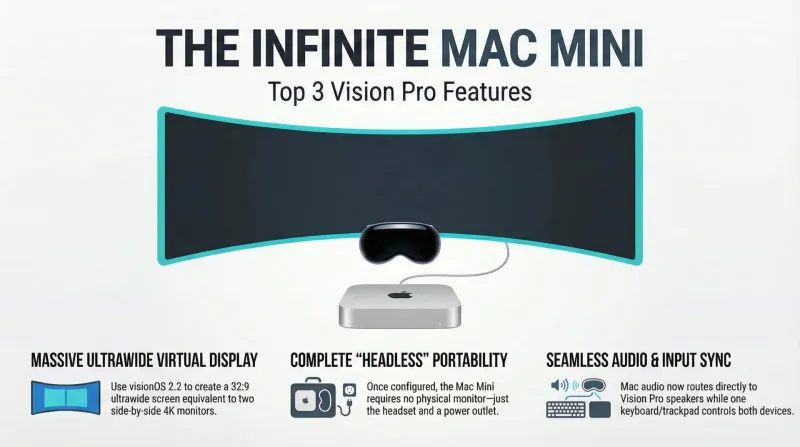
Spatial computing at home: The Dadnology guide to Mac Virtual Display
Ditch the triple-monitor clutter. Learn how to turn your Mac Mini into a 100-inch virtual workstation using the Apple Vision Pro.
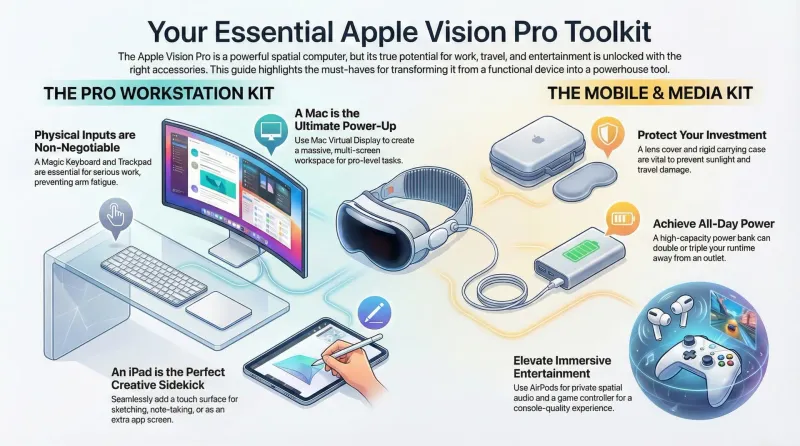
Essential accessories for Apple Vision Pro: 11 must-haves for daily use, workflows, and gaming
Discover the best accessories for the Apple Vision Pro – from productivity tools and protection to battery support and gaming gear.
Hoppers (2026) review: A brilliant nature premise loses its way
Hoppers starts with one of Pixar's cleverest high-concept pitches in a decade before completely abandoning its grounded heart for manic cartoon slapstick. Saved by reference-grade animation that looks breathtaking on Apple Vision Pro, it lands at an honest 3.5/5.