
OpenClaw for dads: 7 family automations that actually save time
OpenClaw isn't just for coders. Seven real family automations—meal plans, school runs, screen-time reports—that turn a private AI agent into a genuine time-saver.
This post contains affiliate links. We may earn a commission if you make a purchase, at no extra cost to you. As an Amazon Associate, Dadnology earns from qualifying purchases.
1. The real mental load (and why an agent helps)
🦞 This guide is part of our OpenClaw Master Hub – every guide to running your own AI agent at home, from first install to family automations.
Every OpenClaw guide on the internet seems to be written for one person: a developer who wants to automate their git workflow. Fair enough. But the dad reading this at 9pm—after the bedtime negotiation, with a sink full of dishes and a half-remembered note about “non-uniform day on Thursday?”—has a different problem. The mental load of running a family isn’t hard work, it’s constant work: a hundred small, repetitive tasks that never quite fit in a calendar.
That’s exactly the kind of work an OpenClaw agent is good at. Not the big, exciting “AI will write my novel” stuff—the boring, recurring admin that quietly eats your evenings. And because OpenClaw runs on hardware you own, you can point it at your actual family data without handing your kids’ schedules to a tech giant.
This guide is the missing one: seven concrete automations, in plain English, that turn a private agent into something close to a digital co-parent. If you haven’t set up an agent yet, start with our definitive OpenClaw guide and pick your hardware first.
2. A word on privacy first (non-negotiable)
Before the fun part: never wire your family’s documents, photos or calendar into a shared cloud assistant. The reason self-hosting matters here isn’t ideology—it’s that these automations only work if the agent can see genuinely private data, and that data must stay in the house.
Run OpenClaw on a dedicated Mac mini or Raspberry Pi 5, put it on its own network segment, and read our security & sandboxing guide before you give it access to anything sensitive. With that done, the following becomes safe instead of reckless.
3. The seven automations
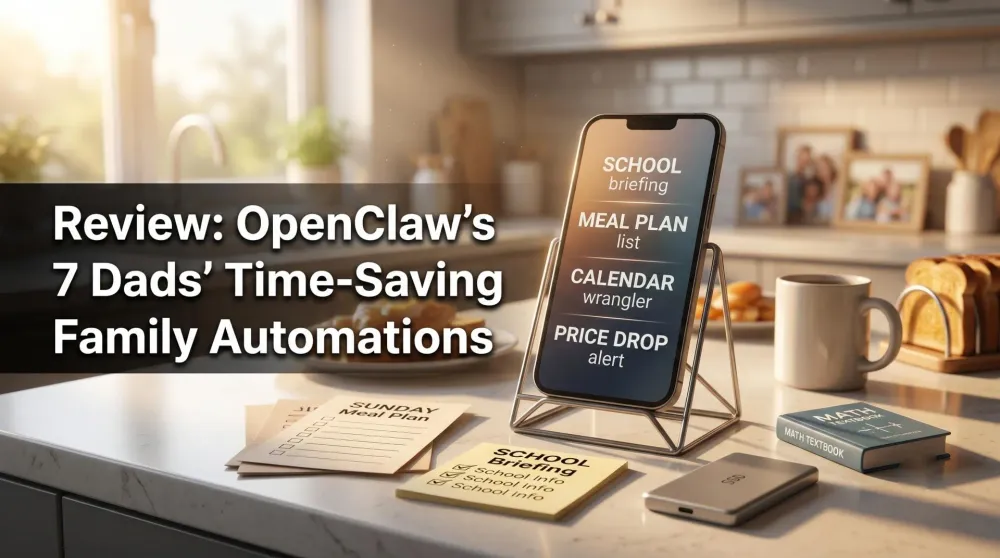
Automation 1 — The Sunday meal plan
The single most repeated argument in family logistics is “what’s for dinner?” Hand it to the agent. Point OpenClaw at a folder of recipes (or let it browse your favourite recipe sites) and give it a standing instruction:
“Every Sunday at 5pm, plan five family dinners for the week using what’s in the fridge photo I send you, keep one vegetarian, avoid anything with peanuts, and produce a single shopping list grouped by supermarket aisle.”
You text it a photo of the open fridge; it texts back a plan and a list. That list lands on your phone before the Sunday shop—no app, no subscription, no “this recipe is locked behind premium.”
Automation 2 — The school-run briefing
School communication is chaos: PDFs, newsletters, “spirit week” emails, and the dreaded non-uniform day. Give the agent read access to a dedicated email folder and ask for a morning briefing:
“Every school night at 8pm, scan the school inbox folder and tell me if tomorrow needs anything unusual—kit, money, costumes, early pickup—in one short message.”
It catches the buried “bring £2 for the cake sale” line you’d otherwise miss at 7:55am. This is the automation that pays for the hardware on its own.
Automation 3 — The Friday screen-time report
Most parental-control dashboards are buried three menus deep and nobody checks them. Have the agent do it:
“Every Friday, pull the week’s screen-time export, summarise each kid’s top three apps and total hours versus last week, and flag anything over the agreed limit—plus one positive thing to mention.”
Turning raw data into a human weekly summary (including the “say something positive” instruction) changes the Saturday-morning conversation from a telling-off into a check-in.
Automation 4 — The family calendar wrangler
Three calendars, two parents, one source of truth that doesn’t exist. OpenClaw can be the merge layer:
“When I forward you any event email or text, add it to the family calendar, check for clashes with existing events or work travel, and warn me immediately if two kids need to be in two places at once.”
It’s the clash-detection that matters. The agent flags the Saturday where football and a birthday party collide while there’s still time to arrange a lift.
Automation 5 — The birthday & gift concierge
Forgetting your niece’s birthday is a recurring family crime. Give the agent the list once:
“Keep a running list of family birthdays. Ten days before each, remind me, suggest three age-appropriate gift ideas in my usual budget, and if I approve one, draft the order so I just have to confirm.”
Pair this with price-tracking on bigger-ticket items (see Automation 7) and you stop both forgetting birthdays and overpaying for last-minute gifts.
Automation 6 — The homework & reading helper
This one’s about augmenting you, not replacing you. A local agent can:
“When one of the kids sends a photo of a maths question to the family chat, don’t give the answer—give a hint and one worked example of a similar problem, in language a 9-year-old understands.”
The “don’t give the answer” guardrail is the whole game. Done right, it’s the patient tutor you can’t always be at 6pm, and because it’s local, you’re not feeding your child’s homework to a public service.
Automation 7 — The patient price tracker
The big-purchase deferral game—“I’ll buy that external SSD when it drops”—is exactly what a 24/7 agent is for:
“Watch these five product links. Check the price once a day, and only message me if one drops below the target I set. Don’t ever spam me with ‘still expensive’ updates.”
No deal-site newsletters, no browser extensions phoning home. Just a quiet ping when the thing you actually wanted hits your number.
4. How to start this weekend (without breaking anything)
Seven automations sounds like a project. It isn’t—if you resist the urge to do all of them at once. Here’s the realistic on-ramp:
- Saturday morning — get the agent running. Follow the setup guide and just get OpenClaw responding to a “hello” over Telegram. Don’t wire it to anything sensitive yet. The goal is a working agent, nothing more.
- Saturday afternoon — do the privacy step. Put the host on its own network segment and create the dedicated work folder. Five minutes now saves a bad day later. The security guide has the exact steps.
- Sunday — pick one automation. Start with the school-run briefing (Automation 2) or the meal plan (Automation 1). Wire up exactly one, live with it for a week, and only add the next once the first feels reliable.
The mistake people make is treating this like a software deployment with a big-bang launch. Treat it like training a new assistant instead: one responsibility at a time, building trust before you hand over the next set of keys. By the end of a month you’ll have three or four automations running and you’ll have forgotten the agent is even there.
A note on “flag, don’t act”
You’ll notice every automation above is phrased to tell you something rather than do something irreversible. That’s deliberate. For anything with consequences—spending money, sending messages, moving files—keep the agent in “draft and confirm” mode, not “execute silently.” The birthday concierge drafts the order; you confirm it. The calendar wrangler warns you about a clash; it doesn’t silently cancel an event. This single habit is what separates a helpful assistant from a stressful one, and it’s why none of these automations require blind trust.
5. Living with it: The honest verdict
After a few weeks, the pattern is clear: the automations that stick are the boring ones. The meal plan and the school-run briefing get used every single day; the homework helper is delightful but occasional. The screen-time report quietly defuses a weekly argument.
What surprised me most is how much the privacy angle changes your willingness to use it. Because the agent lives on a box in my house, I’ll happily give it the school inbox and the family calendar—things I would never paste into a public chatbot. That trust is what unlocks the genuinely useful automations. The trade-off is honest: there’s a weekend of setup, and you’ll occasionally re-tweak a prompt when a website changes its layout. But the floor of “small admin that used to eat my evenings” has measurably dropped.
Pros
- Removes daily repetitive admin (meals, school notes, calendar clashes)
- Private by design—runs on hardware you own, data stays home
- Plain-English setup; no coding after the initial install
- Cheap to run: an $80 Pi handles all seven automations
- The 'flag, don't spam' style means it earns trust instead of nagging
Cons
- Front-loaded effort: a weekend to wire up the automations you want
- Needs occasional prompt tweaks when websites or routines change
- Requires doing the privacy/isolation step properly first
6. What OpenClaw won’t do (and shouldn’t)
A guide that only sells you the dream is doing you a disservice, so here’s the anti-hype counterweight. There are things a family agent is genuinely bad at, and pretending otherwise leads to disappointment—or worse.
- It’s not a babysitter or a safety device. Never put an AI in the loop for anything where a wrong answer has physical consequences—medication doses, allergy decisions, locking or unlocking doors when kids are home alone. The agent is for admin, not safety. If a failure could hurt someone, a human stays in the loop, period.
- It’s not an emotional substitute. The homework helper is a tutor for the mechanical “I’m stuck on long division” moments. It is not, and should not become, the thing your kid talks to instead of you. Use it to buy back time for the conversations that matter, not to outsource them.
- It’s not a fire-and-forget oracle. Websites change, schools switch portals, your routine shifts in September. Automations need the occasional five-minute tune-up. Treat it like a hedge that needs trimming, not a statue.
- It won’t fix a disorganised system. If your family’s information lives in seven apps, three group chats and your own head, the agent inherits that chaos. It works best when there’s one place it reads from—a shared calendar, a single inbox folder. Garbage in, confidently-wrong garbage out.
None of this is a reason to avoid it. It’s a reason to aim it at the right targets: the repetitive, low-stakes, time-consuming admin where a small mistake costs nothing and the time saved is real.
The actual time math
Is it worth a weekend of setup? Run the numbers for the two daily automations alone. The school-run briefing saves maybe five frantic minutes each morning and one forgotten-cake-sale meltdown a term. The meal plan saves a half-hour of Sunday “what do we even eat this week” plus the mid-week emergency shop. Call it three to four hours a month, every month, for a one-time weekend of setup and the odd prompt tweak. That’s the kind of return that compounds—and unlike most “productivity” gadgets, it targets time you’d otherwise never get back.
7. Final verdict
OpenClaw stops being a developer toy the moment you point it at family life. These seven automations target the real mental load of parenting—quietly, privately, on hardware you control. It’s not magic, and the setup is a weekend’s work, but the payoff is measured in reclaimed evenings.
Related Dadnology review: The State of OpenClaw: Mid-2026 Update & What’s New
📌 FAQ – Common questions
Do I need to be a programmer to set these up?
Is it safe to give an AI my family's calendar and documents?
Will this replace Alexa or Google Home?
What's the minimum hardware to start?
How much ongoing effort is this?
Keep this in your inbox
One email a week: what we actually watched, built and reviewed — the stuff worth a dad's time. No hype, no daily spam.
Dadnology Weekly
One email a week: the LEGO, gaming and movie news worth a dad's time — plus what we actually reviewed. No hype, no daily spam.
Disclaimer: This review and its visuals were created with the help of AI. Some links may be affiliate links – we may earn a commission if you make a purchase, at no extra cost to you.
Current deals in Tech & gadgets
Verified live discounts tracked on Amazon

Tech & gadgets · Tested by Dadnology
Apple AirPods Pro (3rd generation)
5/5“The best noise-cancelling earbuds for Apple families”Read our review

You might also like

Hermes Agent's Quicksilver release: What's new in v0.19.0
Hermes Agent shipped v0.19.0 (the Quicksilver Release) on July 20 — an 80% faster cold start, Bitwarden and 1Password integration, and a real security hardening pass.

Hermes Agent hardware requirements: The 24GB sweet spot explained
The real Hermes Agent hardware requirements for running Qwen 3.6 27B locally: why agents need more memory than chatbots, the 24GB sweet spot, and what to buy.

OpenClaw 2.0 is out: Team features, and a real security warning
OpenClaw 2.0 just shipped with team collaboration and a new browser UI - but sandboxing is disabled by default, and that matters if you're running it at home.