
A Home Assistant wall tablet with the Galaxy Tab A11+: Our family dashboard plan
How to turn a Samsung Galaxy Tab A11+ into a Home Assistant wall tablet: our tested family dashboard, Fully Kiosk Browser, battery protection, mounting and power.
This post contains affiliate links. We may earn a commission if you make a purchase, at no extra cost to you. As an Amazon Associate, Dadnology earns from qualifying purchases.
Every Home Assistant household reaches the same point sooner or later. The automations work, the energy data flows, and the only person who sees any of it is the one who built it. What the family needs is one screen on the wall: is the house warm, is electricity cheap right now, will the car be charged tomorrow, is the washing machine done?
We are at exactly that point. In the last few days we built a family dashboard for our Home Assistant setup, tested it on a real tablet and fixed what the test found. It runs today on an iPad, which stands in as a stopgap. The tablet that will go on the wall is a Samsung Galaxy Tab A11+, and it is on our shopping list. So to be clear about what this guide is: the dashboard is real and tested, the iPad experience is real, and the Galaxy Tab part is our plan, based on the manufacturer’s and Home Assistant’s documentation. We will update this guide once the tablet hangs.
Why the Galaxy Tab and not the iPad
The iPad runs our dashboard well. It is fast, the screen is lovely, and the Home Assistant app works. So why buy another tablet for the wall?
Because a wall tablet is not a tablet you use. It is a screen that lives on the wall, on permanent power, and it should behave like an appliance. Three things make Android the better choice for that job.
The first is control. On Android, Fully Kiosk Browser shows the dashboard and lets Home Assistant control the tablet itself. According to Home Assistant’s documentation, the Fully Kiosk integration provides screen on and off, screen brightness, a screensaver, motion detection through the tablet’s camera, the battery level and whether the tablet is plugged in. That means Home Assistant can dim the screen at night, switch it off when nobody is home and wake it when someone walks past. The iPad cannot be controlled this way.
The second is the battery. A wall tablet is plugged in around the clock, and a battery kept at 100 percent all day wears faster. Samsung’s battery protection is designed for exactly that: according to Samsung, on One UI 6.1 or later its Maximum mode stops charging at 80 percent, and from One UI 7 the limit can be set to 80, 85, 90 or 95 percent.
The third is cost. The Galaxy Tab A11+ is a fraction of an iPad’s price, and a wall tablet does not need a fast chip. It needs a good screen, reliable Wi-Fi and a long life. The A11+ has an 11-inch screen with up to 90Hz, 6GB of RAM and 128GB of storage with a memory card slot, according to Samsung’s listing.
The iPad then goes back to what it does best: being a tablet in the hands of the family. Our iPad or iPad Air guide and our family tablet guide cover that side.
What our family dashboard shows
The most important lesson from our build has nothing to do with hardware: a wall dashboard must show less, not more. We started from our existing kiosk dashboard and rebuilt it around one rule: the start page shows only what matters right now.
The left side has the clock, a switch between a light and a dark design, and the outside temperature in large type. Below it is a section called “Now” that only appears when something needs attention: the washing machine is running, the laundry is done, the car is charging, a window should be opened, a battery is running low, or someone is at the front door. When nothing is happening, it stays empty, and that is the point.
The right side shows one line about energy, the home battery and the current electricity price, two quick actions, and eight tiles for the rooms and areas the family actually uses. Everything else, heating, energy, the car, security, the heat pump and the history charts, lives on subpages reached through a navigation bar at the bottom.
The subpages carry the detail for whoever needs it. The car page, for example, shows the current and the last charge, the totals for the month and the year, and the history, so the question “will the car be ready tomorrow?” has one place to look. Our Home Assistant runs on a Raspberry Pi; our Raspberry Pi Home Assistant review covers that side, and the Home Assistant brand page collects everything else we have written about it.
For anyone who wants to build something similar, the dashboard uses a handful of popular custom cards from HACS: Mushroom cards for the tiles, Bubble Card for the navigation bar, card-mod for sizes and colors, a grid layout card for the two-column start page, and kiosk-mode to hide Home Assistant’s header and sidebar. A custom theme gives it the light and dark variants. Our guide to building a Home Assistant dashboard with AI explains the method we used.
What we learned on the iPad
Testing on a real tablet found problems that never showed on the desktop.
The navigation bar showed only three and a half of its seven buttons, although there was plenty of space. Bubble Card limits its width on large screens by default; setting it to the full width fixed it.
On the iPad in landscape, the lower part of the right column was cut off. A wall tablet has less height than a monitor, so the layout now becomes more compact when the screen is less than 900 pixels high, with extra space above the navigation bar so nothing hides behind it.
On narrow screens, the energy line wrapped in odd places. The card now adapts its layout to its own width instead of the screen width, and long labels are shortened instead of wrapped.
None of this is specific to the iPad. Any wall tablet has a different shape than the monitor you build the dashboard on, which is why testing on the real device, in the real position, is the step you cannot skip.
Setting up the Galaxy Tab: our plan
This is the setup we will follow when the Galaxy Tab arrives, based on Samsung’s and Home Assistant’s documentation.
1. A separate Home Assistant user
Create a dedicated user for the wall tablet, without administrator rights. The tablet hangs in a hallway where everyone, including guests, can touch it, so it should only be able to do what the family dashboard offers.
2. Fully Kiosk Browser
Install Fully Kiosk Browser on the tablet, set the dashboard as the start page and enable its kiosk mode, so the tablet always returns to the dashboard and cannot be closed by accident. To control the tablet from Home Assistant, enable Fully Remote Admin and add the Fully Kiosk Browser integration in Home Assistant with the tablet’s IP address and the Remote Admin password. Home Assistant’s documentation notes that Remote Admin requires the paid Fully Plus license; a free trial shows a watermark.
3. Screen automations
With the integration in place, the screen becomes part of the home. The automations we plan: dim the screen in the evening, switch it off at night and when nobody is home, and wake it on motion during the day. Fully Kiosk’s motion detection uses the tablet’s front camera, so decide consciously whether you want that in your hallway.
4. Battery protection
Before the tablet goes on permanent power, turn on battery protection. On Samsung devices, Samsung’s support pages describe the path Settings, Battery, Battery protection, with the Maximum mode capping the charge. Menu names can vary between models, so check on the tablet itself.
Mounting and power
The mount decides how the tablet looks and how the cable runs. Two common types fit the 11-inch Galaxy Tab A11+.
A metal anti-theft mount, such as the Beelta wall mount for the Galaxy Tab A11+, holds the tablet in a lockable frame. It is the robust choice for a hallway with children.
A floating acrylic mount, such as the TABcare acrylic wall mount, holds the tablet on metal standoffs and looks more like a picture than a device.
For power, the simplest route is a USB-C cable to a nearby socket, run along the wall or in a cable channel. A flush in-wall power supply looks cleaner, but it means work on the 230-volt or 120-volt circuit, and that is a job for a qualified electrician, not a weekend project.
Where to hang it
Choose a place the whole family passes several times a day: the hallway by the front door, the kitchen, or the spot where the school bags are dropped. Eye height for an adult is usually right; slightly lower if children should use it too. Avoid direct sunlight on the screen, and make sure the Wi-Fi is strong at that spot, because a wall tablet that loses its connection shows an error instead of the house.
Lessons for your own wall tablet
Do not put the admin dashboard on the wall. Nobody reads forty tiles; show what matters now and hide the rest one tap away.
Turn on battery protection before the tablet goes on permanent power. A battery kept at 100 percent all day wears faster, and it is the easiest thing to forget once the tablet hangs.
Test on the real device, in its final position, before you drill. Our iPad tests found three layout problems that the desktop never showed.
And leave anything inside the wall to an electrician. A USB cable to a socket, run neatly in a cable channel, is fine and easy to undo if the tablet moves to another wall later.
The bottom line
For a Home Assistant wall tablet, the Samsung Galaxy Tab A11+ is the better choice than an iPad: Fully Kiosk Browser lets Home Assistant control the screen, brightness and motion wake-up, Samsung’s battery protection caps the charge for permanent power, and the tablet costs a fraction of an iPad. Our family dashboard is built and tested, and it runs today on an iPad as a stopgap. The Galaxy Tab is the permanent solution we are buying, and we will update this guide when it hangs on the wall.
The Final Word: Build the dashboard for the family, not for yourself, then give it a tablet that behaves like an appliance.
What is the best tablet for a Home Assistant wall dashboard?
Can I use an iPad as a Home Assistant wall tablet?
Do I need Fully Kiosk Browser?
Is it safe to keep a tablet plugged in all the time?
How do I hide the Home Assistant sidebar and header?
Keep this in your inbox
One email a week: what we actually watched, built and reviewed — the stuff worth a dad's time. No hype, no daily spam.
Dadnology Weekly
One email a week: the LEGO, gaming and movie news worth a dad's time — plus what we actually reviewed. No hype, no daily spam.
Disclaimer: This review and its visuals were created with the help of AI. Some links may be affiliate links – we may earn a commission if you make a purchase, at no extra cost to you.
Current deals in Tech & gadgets
Verified live discounts tracked on Amazon

Tech & gadgets · Tested by Dadnology
Apple AirPods Pro (3rd generation)
5/5“The best noise-cancelling earbuds for Apple families”Read our review

You might also like
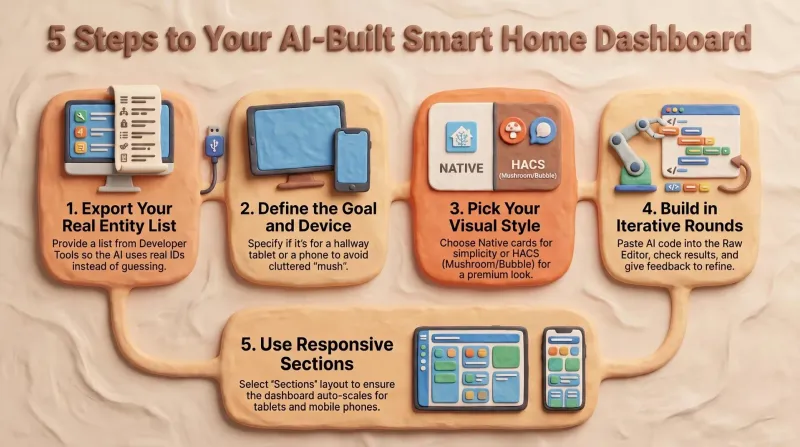
Build a Home Assistant dashboard with AI: A step-by-step guide
After reading this you'll have a repeatable method for building a calm, responsive Home Assistant dashboard with an AI doing the YAML — driven by your entity list and a clear concept rather than guesswork.

Which Kindle to buy: Paperwhite, basic Kindle or Kindle Kids?
Which Kindle to buy as a gift: Paperwhite, basic Kindle, Kindle Kids or Colorsoft? From a dad and a daughter who read on two Kindles every week.
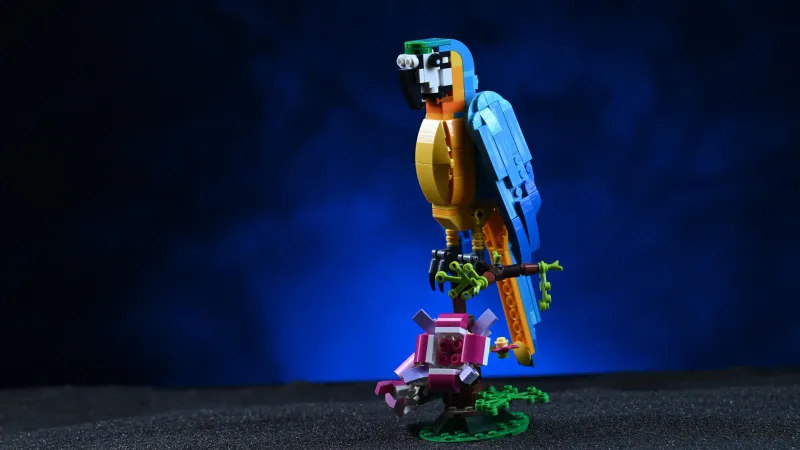
The best LEGO Creator 3-in-1 animal sets: The big and small gifts we keep buying
The best LEGO Creator 3-in-1 animal sets, big and small: shark, parrot, T. rex, panda, lion and dragon, plus the hummingbird, flamingo, spider, puppy and cat.